<img src="https://www.inventive-7-intuition.com/807131.png" style="display:none;">
 
Company Logo
image-png-Mar-12-2026-07-18-16-5226-AM


Configuring and using SoftRadio on the Dispatcher PC 

Technical description and set-up instructions

Art n:o
-
Revision
-
Release date
Oct 22, 2024

This guide will help with the configuration and daily use of your Dispatcher PC in a Mimer SoftRadio system. Please also refer to the “Basic guide for System Setup” and to the web page: www.lse.se with its subpages for setup, for example www.lse.se/audio.

Please also note that for many options and add-on products there are also separate guides. You will find them here: www.lse.se/setup. 

This is Mimer SoftRadio 

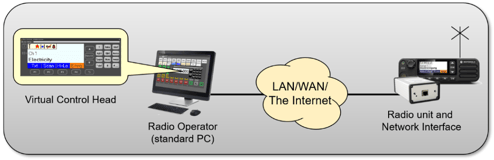
Mimer SoftRadio is a system that gives you the possibility to remotely control your two-way radios or other audio devices over a LAN, WAN or over the Internet. It also lets you mix and match different brands and types of radios as well as telephones and intercoms. 


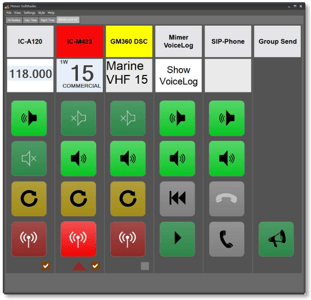
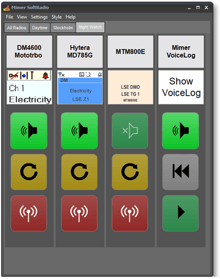
SoftRadio main window, two radios attached 


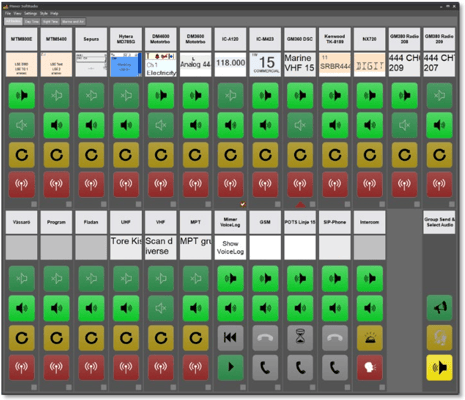
Example of SoftRadio with many radios connected   


3

Many users can share one device, and each user can operate many devices. Each operator can control both local and remote devices. 

There are also lots of options and add-ons that turns Mimer SoftRadio into a complete system for advanced users such as Alarm Centrals or Control Rooms.

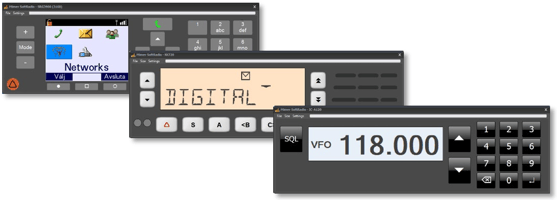
By using virtual control heads on advanced radios, the operator gets the feeling of “sitting in front of the radio”, although the radio is at another location. The operator has, with the help of the virtual control heads, full control of both the display and the buttons on the radio.

Less advanced radios are remote controlled via audio and PTT without the possibility for channel change and other functions.

Mimer SoftRadio is sold all around the world to all types of radio users.


Virtual Control Heads for different radio types 


4

Startup of Mimer SoftRadio

Start the “Mimer SoftRadio” software on the operator PC.

If you have followed the steps in the guide “Basic Guide for System Setup”, you should now see one or more radios or other devices.

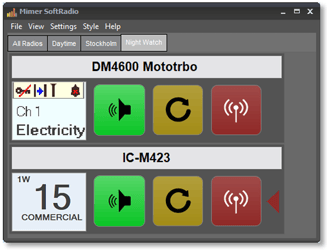
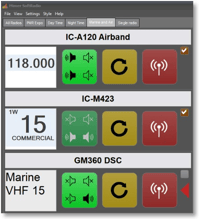
SoftRadio with vertical layout

If not, check your settings again and then check if there is a firewall, in your PC or in the network, that is blocking the connections.

In this guide you will learn what different settings means for your use of the system. More information can be found on the web page www.lse.se/usersettings.

Don´t be afraid to click on different settings under “Settings” and “Style” to see what layouts are possible, try for example the “Vertical layout”.

Please note that each Virtual Control Head for the different radios also has its own settings menu. Here you can set the size of the virtual control head and what part of the radios display that shall be visible on the main device panel.

Please feel free to contact your Mimer Reseller with questions regarding the installation or use of Mimer SoftRadio. 


5

Basic use of SoftRadio 

For each device panel in SoftRadio there are buttons that control that specific device.

Depending on setup and the options ordered the device panel can handle other things than a radio. There are also device panels used for phones, intercom, the VoiceLog etc. This is described further down.

Some selections require a right mouse click. If you are using a touch screen and don´t have a mouse, please note that you can make a long press instead, about three seconds. 

Radio Device Panel 

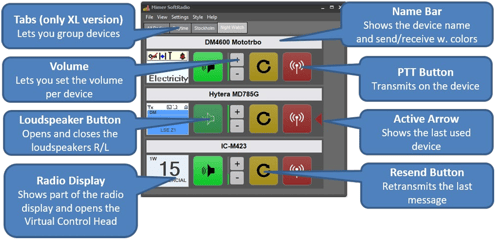
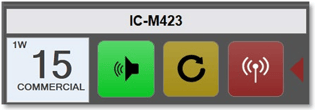
As a default each device panel have buttons for PTT, speaker and resend. If the radio supports it, it also shows a part of the radios display. 

Under Settings these buttons can be turned on/off, speaker buttons can be changed from one to two per device etc. The settings can also be blocked by the system administrator. 

Main Buttons 

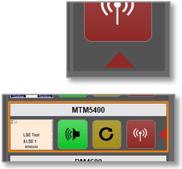
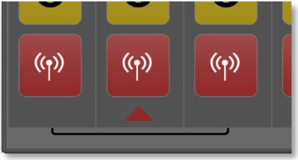
PTT-button, the red button with the transmitting antenna icon. Push and hold the button when you transmit. There are also alternative ways of doing PTT, described later in the text. 


6

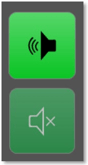
Speaker button, the green button with a speaker symbol. When the button is light green and the icon shows audio, the speaker is open. When the button is dark green and the icon shows an X in front of the speaker, the speaker is closed. Depending on setting you see one or two speaker buttons. When you have two buttons, one is left and one is right, so that you can have different devices in each speaker. For example, one radio in the left speaker and the other radios in the right speaker. Or phone in the right speaker and radios in the left speaker.

There is also an option for having up to eight speakers together with SoftRadio XL. This is described further down. 

Yellow button 

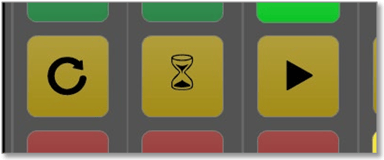
Resend button, as default the yellow button has a round arrow. This button will resend the last transmitted message. Even if the last transmission was on another radio, it will resend the message on the device that you push the button on. 

Wait button, for each device panel the yellow button can be changed into a Wait button that will send out a wait-tone message on the radio channel. As default this is a “Bing-bang bong” type message. It can be changed out to any audio file with voice or tones. This is further described on the web page. 

More possibilities, with the option “Advanced Audio Messages” this key can have more functions, where you can have several different stored messages to send out. The Advanced Audio Messages option, setup and use are further described later in this manual. 


7

Other information 

Name Bar, the information at the top, or at the left, of each device panel.
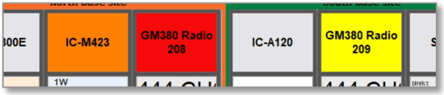
Here you will see the name entered for each device. You will also see different colours that show different states on the device.
Bright Yellow – receiving audio
Light Yellow – a hanging connection is active (Tetra systems)
Red – transmission
Orange – another dispatcher is transmitting on the device
Green blinking – a private call has been received
Light Blue – a phone call has been put on hold (POTS or GSM) 


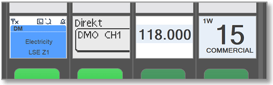
Small radio display, this will show part of a radios display on radios that have a Virtual Control Head. Clicking the display will bring forward or close the Virtual Control Head. Through the menus in each radios Virtual Control Head you can set what part of the radios display that is shown.

Radios and other devices that don´t have a virtual control head will leave this display empty. You can untick a box in Settings, called “Show Radio Display” so that the display disappears on all devices. You can also set a fixed text in the window; this is done in the program “Connection Setup” and are described in the SoftRadio Setup manual. 

Active Arrow, the small red triangle. This is shown on the last clicked device. This indicates which device that is active for an external PTT. For example, the space bar on the keyboard or a separate key on an external microphone.
On version 4.0.17.16 and forwards, you can also set a colour frame on the last used device. The colour can be selected. 


8

Different ways of doing PTT 

PTT Key

Pushing the red key with the antenna symbol in SoftRadio. 

Space key

The space key on the PC keyboard. SoftRadio needs to be the selected Window on your screen.

Hotkey

A keyboard key can be specified as a hotkey for PTT use. Default is F8. See settings below.

External Key

An external key can be connected in the PC´s COM-port. The COM-port number is specified in the settings. The PTT is done by closing pins 7&8 in the COM-port. This can also be done through a COM-port to USB adaptor.

On the VCH display

On some Virtual Control Heads, you can PTT by pushing the display area. This is made in order to get a large PTT key on touch screens. 

Virtual Control Heads

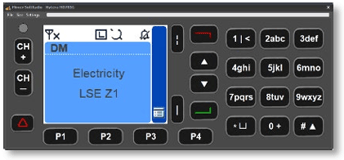
Radios that are connected to advanced interfaces will be able to present a Virtual Control Head. Depending on each radios possibilities the control head can either mimic the radio in full, or do a set of functions like channel change etc. Please see the web page for information on each radio’s capabilities. 

On the Virtual Control Head there are also some settings. You can for example change the size of the virtual panel and you can set what part of the radios display that should be visible on the main SoftRadio device panel. This is described further down in this manual. 

9

Button Visibility

It is possible to hide buttons that an operator has no use for or shall not use. For example, the PTT button on a certain radio, if the radio is only meant for listening.

These settings are done in “Mimer Connections Setup” and are described in the SoftRadio Setup manual. 

Tailor made layout and buttons

The layout of buttons in SoftRadio can be changed even further through the use of scripts. These needs to be ordered through your dealer. 


Add-ons to the system 

Phone Device Panels

The system can handle SIP-phones as well as GSM/3G and POTS. 

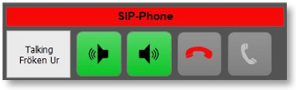
Instead of the PTT button you will get a handset symbol. This is used for making and receiving calls in the same manner as on most mobile phones.

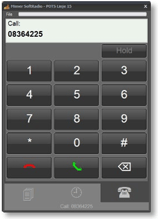
By pushing either the handset or the name bar you will open a call window. In the call window you have access to a contact list, a history list and a number pad. The functions are self-explanatory.

SIP phone connections are personal for each dispatcher. POTS or GSM on the other hand are shared resources between all dispatchers. This means that any dispatcher can answer a call that comes in. If the dispatcher would like to transfer the call to another dispatcher, he can put the call on hold by using the hourglass button, and any other dispatcher can take the call by pushing his hourglass button. While the call is on hold the name bar will turn light blue.

10

Note that, if you PTT a radio while in a phone call, the microphone is disconnected from the phone call, so that the person at the other end shall not hear what is said on the radio.

SIP phone functions are further described in a separate manual. 

Intercom Device Panel

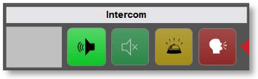
The intercom panel works similar to the radio panels. The red button is still PTT but with the difference that the transmissions only go to the other dispatchers, it is not sent on a radio. 

The yellow “Bell Button” gives a tone signal at the other dispatchers to “wake them up” before you give your spoken message.

PA and Fog Horn Device Panel

There is also a special interface and a device panel to be used for making PA messages and activating a foghorn. Read more here: www.lse.se/mimer-pa-and-foghorn

VoiceLog Device Panel

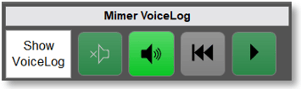
The VoiceLog device panel handles replay of messages and of course open/close of the VoiceLog window. 

VoiceLog is further described in its separate manual. 

11

Settings in SoftRadio

Do you prefer one or two speaker buttons, do you want to have a volume control for each radio? Or would you like a vertical layout? It can all be changed, very easily.

Many of the settings can be blocked for changes by the system administrator. Then the selections described below will be “grey” and not changeable by a “normal” user. 

Main Settings

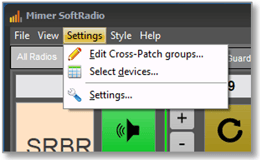
Settings is accessed from the top list in the Mimer SoftRadio GUI. 

The first information, User ID and Username, are read only. They are set up in “Mimer Connections Setup”.

Please note that the menus and the number of tabs under settings will look different depending on the installed options.

If options like for example SIP-Phone and Marine Calls are installed, there will be more tabs. These are described in their specific manuals. 


12

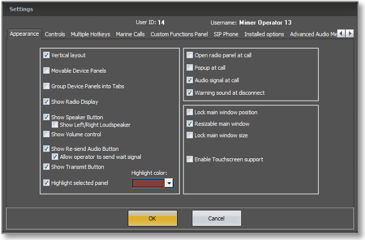
Settings; Appearance

  • The left part sets which buttons to be shown in Mimer SoftRadio. And also, if vertical or horizontal layout should be used.
    In SoftRadio XL you can also choose if the device panels should be movable and if Tabs shall be active. Further described below.
    "Allow operator to send wait signal" allows for a right click on the yellow key, on each device panel, with a selection if the key shall function as "Resend" or "Wait message send".
    "Highlight selected panel" gives an extra frame around the device panel that is selected for transmission. Works in parallel with the small red arrow. 

  • The right top corner controls what will happen when a radio receives a selective/private call.
    You can also select to have a warning sound and/or a warning colour when a device disconnects from the SoftRadio system.

  • In the right lower corner, you set if the window should be fixed or if the operator should have the right to resize and/or lock it to a certain position on the screen.
    You can also enable support for touch screens. This gives a virtual keyboard on the screen when you need to input a text or number, for example when writing an SDS. 


13

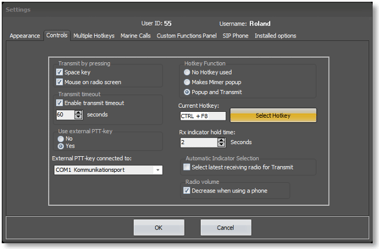
Settings; Controls

  • At the left you set in which way a PTT can be keyed in addition to pushing the standard PTT button on the SoftRadio GUI. 

    Here you can also set a Timeout for the transmission. 

    And select the COM-Port to be used by an external PTT-key. 

image-png-Mar-12-2026-08-07-03-5198-AM

  • The right-side sets if a hotkey should be used on the keyboard and how it shall function. You may also specify your own Hotkey or combination of keys. This is often used as the PTT key on dispatcher accessories. 

    The middle right side sets the hold time for the yellow “receive audio” indicator. Practical is to keep it at 1-2 seconds. This means that it will stay lit a while after the last transmission was received to give the operator a better chance to respond on the correct radio in systems with several radios. 

    Automatic Indicator Selection, ticking this box will automatically move the “Active Arrow” to the device that last had reception. Gives a faster response from an external PTT key. (But might also be misguiding if several receivers are active at the same time) 

    The last selection sets if radio audio shall be decreased during a phone call.

    The default level, when decreased, is 20% radio audio left during the phone call. This can be set differently with an engineering setting, please ask if needed. 


14

Change of styles

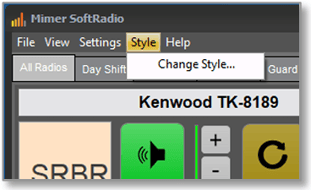
Under the menu “Style” you can change the colour scheme of SoftRadio. Please test and select the style that you prefer. 

View

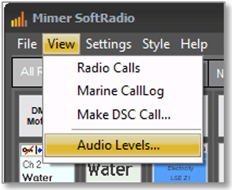
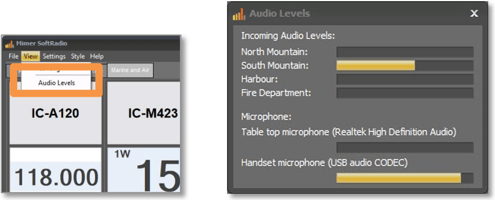
Under the menu “View” you have the “Audio levels” that is a help to see that you have the correct audio levels on your transmission and reception. Further described below.

Depending on your installed options you might also find selections for “Radio Calls” and “Marine Calls” here. 


15

Select Devices 

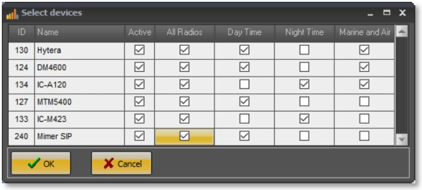
This selection pops up under “Settings” if the tick box “Allow users to select connections” is marked in the program “Mimer Connections Setup”. 

Here you can select what devices to show in your SoftRadio by ticking the boxes. You can even have more radios available in the list than you are allowed to use in SoftRadio. For example, a list of 12 devices although the standard software only handles 8 devices. In this case you can select up to 8 devices (of the 12) by ticking the boxes. 

If you are using the XL-version, see options further down in this manual, you can organize your devices in tabs. Then you use “Select Devices” to select which devices that shall be shown on what tab.

There is also an alternative option called “Profiles” that helps to organize the devices. This option is further described at the end of this manual. 


16

Settings in the Virtual Control Head 

Also, in each radios Virtual Control Head there are settings that affects your SoftRadio GUI. Depending on the radio model, there are a different number of settings. All are not available on all models. 

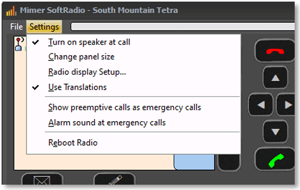
The example to the right shows the Motorola Tetra Virtual Control Head settings. 

Turn on speaker at call

Ticking this box will force the speaker to open if the radio receives a private call. 

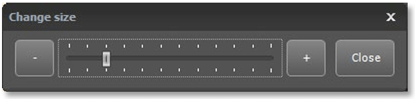
Change panel size

The size of the Virtual Control Head can be selected to fit your screen. 

Radio display setup

The setting here will affect the small display that each device panel has in SoftRadio. You can set what part of the radios display that will be shown in the small display. 

It is worth the effort to experiment/test/adjust this when all other settings are done. So that you get the best information from the radio. 

Show numeric keyboard

On some Virtual Control Heads, we have added a keyboard that normally is not there on the radios front panel. This is to make it easier to enter channel numbers or private calls. The keyboard can be set to be shown or hidden.

Use Translations

Motorola Tetra only. There is a separate translation file for the radio’s menus. In addition to English some other languages are also available. You can turn on that translation here.

If your local language is not supported, it will still be English. Contact us if you would like a new language implemented.  


17

Show preemptive calls as emergency calls

Motorola Tetra only. An incoming emergency call is shown with a light red colour. Ticking this box will make the application show all pre emptive calls as emergencies. 

Alarm sound at emergency calls / Enable Alarm Signal

Motorola Tetra and DMR only. Gives an extra alarm signal when an emergency is received.

Reboot Radio

Motorola Tetra only. This will force the radio to reboot.

Alternative Layout

Motorola GM-series only. Some countries have different button symbols. This can be set here.

Select Amber / White / Black screen

On some radio types, the background colour of the display can be changed. 

Language

Mimer SoftRadio is basically English. It is also translated to, at the moment, ten other languages. Please see web page for details.

SoftRadio will follow the language setting in the operator PC. You can change this setting by doing a new selection in the PC and then restarting SoftRadio. You will find the language setting in Windows under “Control Panel” and “National Settings”.

It is also possible to set another language on SoftRadio than the language the PC uses. Setting this up is described on the web page with setup hints.

If you would like to have a new language implemented, please contact us. 

 

18

Audio

It is very likely that you will need to adjust the audio settings in your PC. The microphone in your PC might also need to be switched on if it has not been used before. This is all done in Windows and/or the specific setup for your PC´s audio card.

You will find more information about this in the “Basic guide for System setup” and on the web page www.lse.se/audio

Mimer Audio Levels

There is a menu in SoftRadio that lets you view your audio levels.

Select “Audio Levels” under View to get the Audio Levels window 

If you feel that you hear the incoming audio at a too low or too high level, you can check the incoming levels for each radio. Ask you technician to adjust accordingly. Remember that the reason for high or low audio also can be that the radio user speaks very high or low.

Your outgoing audio (“Handset microphone” in the screen shot above) shall reach 100% when you speak loud and clear at the normal distance from the microphone. If not, ask you technician to adjust accordingly. Remember that the position of the microphone from your mouth affects the level. 


19

Options 

Your SoftRadio system and your dispatcher can be equipped with a lot of add-ons and options that adds even more functions to your system.

Some extensive options have their own manuals that explains installation and use, while the smaller ones have their instructions here.

All options need to be ordered for each operator, and then installed on each operator PC.

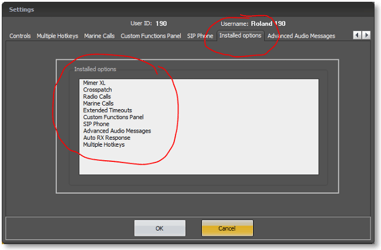
You can check in the tab “Installed Options” under “Settings” what options you have installed. 

SoftRadio XL

The XL version of SoftRadio allows you to connect up to 60 devices instead of the standard 8 devices.

It will also open up for some extra options like Multi Speakers and Multiple Hotkeys. All further described below. 

Tabs

With XL installed you can group device panels into tabs. You activate the Tabs function with a tick box on the first page in Settings.

Each tab can be set up with anything from one to 60 devices and you can have the same device on several tabs. Selection of devices per tab is done through the menu “Select Devices” under Settings.

Adding, deleting and renaming tabs are done from a menu visible when right clicking on the tab name. Here you can also set a password for all tabs, except the first one, which is always available.


20

Movable Device Panels

With XL installed you can select “Movable Device Panels”. This is selected on the first page in Settings.

With this selection the device panels become movable in the SoftRadio window. This means that you can sort them in an easier way for higher visibility. Just press and hold the mouse on the device name and move it to your preferred place.

Frames

When “Movable Device Panels” is active, you can also add frames around a selection of devices, for example to group all radios at a specific radio site, or of a specific type. By right clicking anywhere in the window background you get the question to add a new frame. By right clicking inside the frame, you can select colour and the name caption of the frame.

Then drag any device panel and drop it inside the frame. The size of the frame will increase to allow place for the new panel. When done, you may right click in the frame, or on the frame caption bar, and select “Optimize layout and size”. This will automatically pack the device panels and make the frame as small as possible. When done you can move the frame within the SoftRadio window.

In a similar way, as above, you can then right click in the SoftRadio window and select “Optimize layout and size” to automatically arrange the device panels (and frames if you have any) and optimize the layout to be as compact as possible.

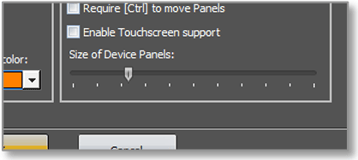
When using Movable Device Panels, you can set the size of the panels under settings. Down at the right on the first Settings tab you will find a setting tool for the size. Drag it to the preferred size and press OK.  


21

Mimer CrossPatch (2867)

The CrossPatch option lets you patch together two or more devices, so that audio that comes in on one device is retransmitted on one or more other devices. This can be done between both radios and phones.

You can patch just two devices or up to the number of devices that you have on your console. You can also make several separate patches at the same time, but only one for each device.

The patch is shown with a bar between the radios, as the attached picture, or when you have too many radios with “X1” for the first patch and “X2” for the second etc.

When you have made a patch, you “own it”. The other operators can see that it is there, but not change it, or delete it. 

CrossPatch Setup

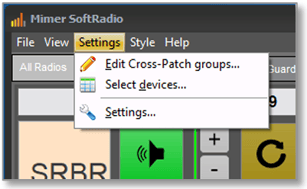
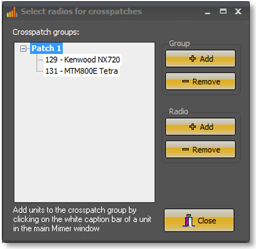
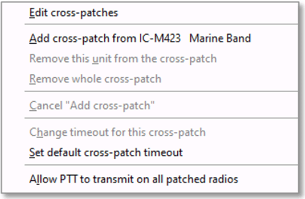
There are two ways to set up the patch. Either right click on the device panel, at the bottom under the PTT, and follow the steps described, or go to Settings and “Edit CrossPatch groups”. From the pop-up window, you can set up and delete any number of patches.

When right clicking you also get the choice to set the default timer for all patches. Or a specific time out for each patch. You can turn off the timer so that the patches last “for ever”, or you can select a time, after which it will be deleted.


22

There is also a selection called “Allow PTT to transmit on all patched radios”. This will give the operator a group transmission on all radios that are connected in a patch.
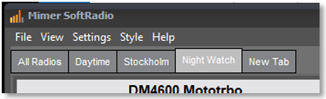
image-png-Mar-12-2026-08-50-12-4831-AM

Having a phone in the patch

A patch with a phone is not persistent. It will automatically be deleted when the phone call is ended.

Using the function “Allow PTT to transmit on all patched radios”, does not include the phone. When you PTT a radio, the microphone is always disconnected from the phone call, so that the person at the other end shall not hear what is said on the radio.
Please note that if you don´t use a mouse and therefor can´t right click, make a long press instead, about three seconds. 

Mimer Custom Functions Panel (3013)

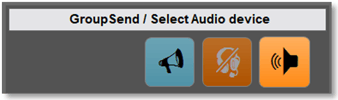
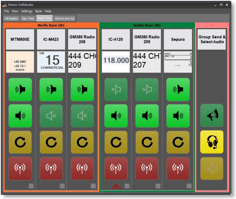
This is a separate panel usually to the right or at the bottom of your devices. Here you can show extra buttons to use for selecting audio paths and for group sending etc.

Please see the separate manual for details. 


23

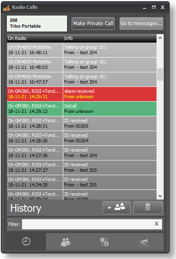
Mimer RadioCalls (3046)

RadioCalls is a separate window that will give a Contact list and the functionality to make private calls and send both stored and instant text messages. There is also a list with the last 500 incoming calls with time stamps. A separate log file with all calls is also created each day on your hard drive.

Please see the separate manual for details.


Mimer MarineCalls (3115)

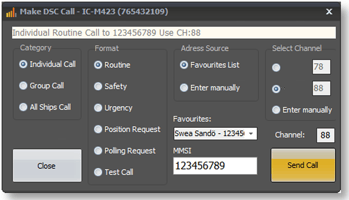
MarineCalls is used for DSC and ATIS messages on the marine VHF band. You can both send and receive DSC messages.

Please see the separate manual for details. 

Mimer SIP Phone Client (3154)

With the SIP phone client installed, you can make and receive phone calls over a SIP exchange. SIP Phone connection is a software option, one needed per operator.

Please see the separate manual for details.

It is also possible to connect phone calls through GSM/3G and POTS. This is done through a separate Network Interface. This interface is shared by all operators. (These interfaces are no longer available) 


24

Mimer  Diversity (Voting) (3103)

The voting option is used for selection of best audio when you have several receivers on the same radio frequency.

Typically used in Marine systems along a coastline or a river.

Please see the separate manual for details. 

Multi Speakers (3299)

Only together with SoftRadio XL.

This option gives the possibility to use up to eight speakers instead of the standard two. In other words, use up to four audio cards with two speakers each.

For each device you can select listening in one, two, three or all eight of the speakers. You can still use the green button to mute all audio at the same time. 

Selection of speaker is made through a separate menu brought forward by a long press on the green speaker button.

Please see the separate manual for details. 


25

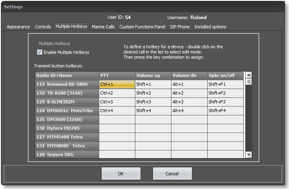
Mimer Multiple Hotkeys (3049)

Only together with SoftRadio XL.

This gives the possibility to give each devices PTT, Speaker open/close and volume up/down button a corresponding key or key combination on the computer keyboard. This is useful if you prefer to hide the SoftRadio window on your screen and instead use your keyboard or a separate keyboard with dedicated keys.

For example, you can set up your first radio to PTT on the keyboard combination “Ctrl+1”, the second to PTT on “Ctrl+2” etc.

The setup and activation are done in SoftRadio Settings.

Be careful not to use a key or combination of keys already in use by Windows or other programs on the PC, for example F1 or F16.

Mimer Advanced Audio Messages (3236)

Only together with SoftRadio XL.

This gives the possibility to transmit prerecorded audio messages on any radio in SoftRadio by simply pressing the yellow button. 

Keys for Resend, Wait and Prerecorded messages

Voice messages can be recorded and stored by the operator; also other prerecorded audio messages can be used.

Please see the separate manual for details. 


26

Mimer Profiles (3305)

Only together with SoftRadio XL.

This gives the possibility to store different setups (profiles) of radios and other devices in “Mimer Connection Setup”. The operator can then easily select between the different setups. For example, different setups can be prestored before an event, where you use one setup during Monday, another on Tuesday etc.

The different profiles can be edited on a separate PC by a supervisor and sent over to the operator PC. In this way the supervisor can decide what devices each operator shall work with at each given moment.

A large difference between this option and the standard function in SoftRadio XL called “Tabs”, is that with Tabs all radios on all tabs are connected in the background, drawing resources from the IP net and the servers. When using Profiles only the visible radios are connected.
Please see the separate manual for details.

Mimer Zone Extensions (3306)

Only together with SoftRadio XL.

A standard SoftRadio system can handle 240 nodes. Where a node is a radio, operator, server etc. in the system.

With Zone Extensions the system is divided into a number of zones that each hold 240 nodes. This opens up for many thousands of nodes in the total system.
Please see the separate manual for details. 


27
 
Mimer SoftRadio

Proudly made in Sweden

Connect Your Radios.
Anywhere. Over Any Network


Contact

LS Electronics AB

www.lse.se/contact-sales

info@lse.se