<img src="https://www.inventive-7-intuition.com/807131.png" style="display:none;">
 
Company Logo
image-png-Mar-10-2026-10-13-06-4557-AM


Basic guide for System Setup

Technical description and set-up instructions

Art n:o
-
Revision
-
Release date
Feb 25, 2022

This guide will help with the basic setup of your Mimer SoftRadio system.
Please also refer to the guide “Setting up and using SoftRadio” that is aimed at the dispatcher and the guides for each SoftRadio option, they are all found on this page: www.lse.se/setup. There are also web pages that describes the setup and an FAQ answering most questions, please see: www.lse.se with its subpages.

Many of the radios that you connect to SoftRadio requires settings in their respective setup software (CPS), and sometimes also the Network Interface needs a setting to function with the selected radio. Instructions for this can be found on this page: www.lse.se/cables.

Please read through the instructions and then apply them step by step.
This is Mimer SoftRadio

Mimer SoftRadio is a system that gives you the possibility to remotely control your two-way radios or other audio devices over a LAN, WAN or over the Internet. It also lets you mix and match different brands and types of radios as well as telephones and intercoms.

Many users can share one device and each user can operate many devices. Each operator can control both local and remote devices. 

image-png-Mar-10-2026-10-18-53-9103-AM

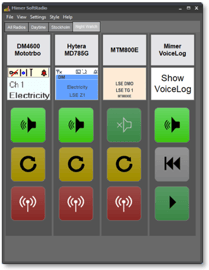
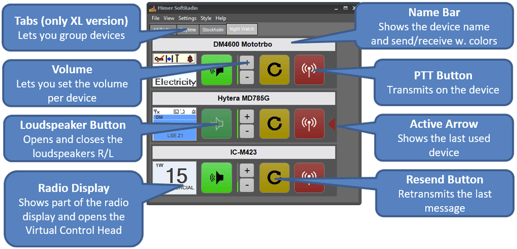
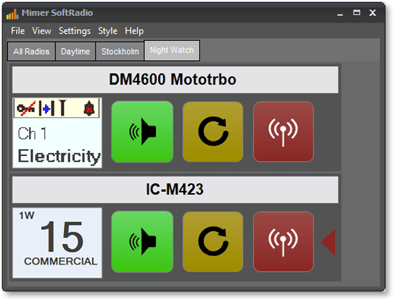
SoftRadio main window, two radios attached 

image-png-Mar-10-2026-10-26-14-5185-AM

There are also lots of options and add-ons that turns Mimer SoftRadio into a complete system for advanced users such as Alarm Centrals or Control Rooms.

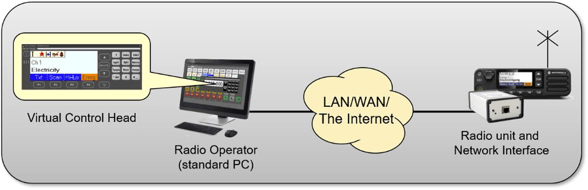
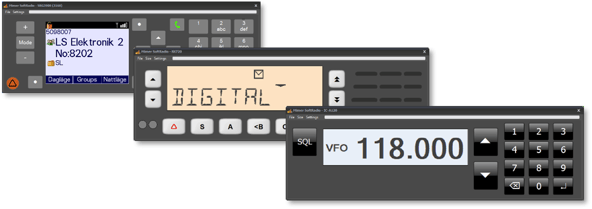
Through the use of virtual control heads on advanced radios the operator gets the feeling of “sitting in front of the radio”, although the radio is at another location. The operator has in many cases, through the virtual control head, full control of both the display and the radio keypad.

Less advanced radios are remote controlled via audio and PTT without the possibility for channel change and other functions.

3

Mimer SoftRadio is sold all around the world to all types of radio users. 

image-png-Mar-10-2026-10-28-38-2864-AM

Virtual Control Heads for different radio types 


4

Standard Mimer SoftRadio Kit 

Your standard package includes the following: 

  • Software on memory stick Including SoftRadio and the options and add-ons ordered

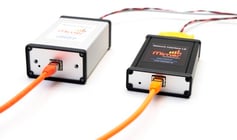
  • Network Interface Unit(s)

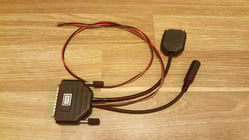
  • Cable Kit(s) (different for different device types) 

Interfaces-small-May-16-2025-10-20-28-2393-AM

3156-1024x576

You need to supply: 

  • Standard PC with:
    • Windows (Win10 or Win11, 64 bit)
    • Ethernet connection
    • Audio Card
  • Microphone and speakers or headset
  • LAN/WAN/Internet
  • Radio unit, or other type of device
  • DC Power for radio and the network interface

The system runs very well on touch screen PC´s.

5

First time user? 

If this is the first time you set up a Mimer SoftRadio system we strongly recommend that you start with one interface connected locally (Direct TP cable or LAN) to your PC.

If you will be setting the system up at a customer, test everything at your own facility first, on your own PC. Then you know that everything works and you have tested to do all the settings.

Then step up slowly with more interfaces, more operators and after that the connection over a WAN or the Internet.

For test and demo you may install the software on your own PC without an extra software license.

It is not difficult to set up the system, but it is possible to make mistakes and they are so much easier to correct when you have everything at hand locally.

You might also run into firewalls and other security issues in the customers LAN/WAN that needs to be sorted. Everything can be fixed, but once again it is much easier if you first have tested the equipment in an environment that you know and have control of.

On the next page is a short form setup guide, if you are in a hurry. 

Basic System Type 

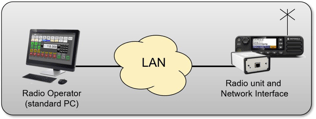
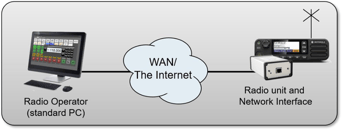
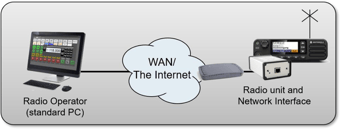
This guide will help you to set up a basic system like the one shown below, with one radio and one dispatcher. 

image-png-Mar-10-2026-10-26-14-5185-AM

To add more radios and/or dispatchers just repeat the steps. 


6

Short form setup guide 

These are the steps that needs to be done for a local setup of one interface “out of the box”.

1. Connect the radio to the interface (if you have more than one interface, select ID 101)

2. Install the SoftRadio software on your PC

3. Connect your LAN port direct to the interface

4. Power up the radio and the interface

5. Start Mimer SoftRadio 

You should now have a connection to your radio and be able to talk and listen through it.

If not….you might also need to: 

6. Set a fixed IP address on your PC´s LAN port (in the span 192.168.0.XXX)

7. Set the audio levels on the PC

8. Reprogram the radio (some radios need special programming) 

All of the above, and more, are described in detail in this manual.

Error messages that might be shown are described at the end of this manual. 


7

Installation of the software 

Software installation

Insert the memory stick into the PC and navigate to the Setup, then follow the onscreen installation instructions.

Select: “Full installation which includes setup programs”.

If you have ordered options to your system, like CrossPatch or Marine Calls, then the installer will prompt you to install them as well, do so. 

image-png-Mar-10-2026-11-59-46-3703-AM

Find the programs

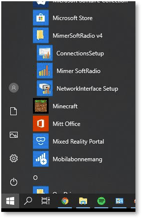
After the installation you will find the programs in “All Programs” under the “Start” or “Windows” button in the down left corner of your screen.

In Windows 10 you scroll down to Mimer SoftRadio. Or search with the “Magnifying Glass” function.

It’s a good idea to place a shortcut Icon on the Start menu of the PC. You can also place it in “auto start”. 

image-png-Mar-10-2026-12-01-24-0343-PM

Connecting the Network Interface

Unit First of all, you need to configure a few settings in the Network Interface.

Connect the Network Interface to the same local LAN that your PC is connected to, or via a patch cable directly to your PC. Use a CAT5 or higher cable.

Connect DC power to the interface through the cable kit. (Some cable kits require that also the radio is powered, then also connect the radio, see below) 


8

Connecting the radio 

If needed make the settings in the radio that are explained on the instructions that can be found on this web page: www.lse.se/cables.

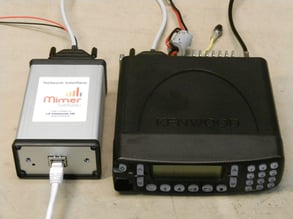
Connect the Radio to the Mimer Network Interface Unit with the supplied cable kit. 

Kenwood2-1


9

Setup of the Network Interface 

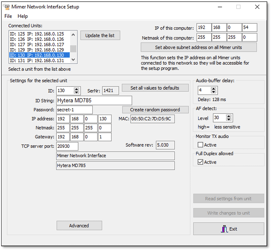
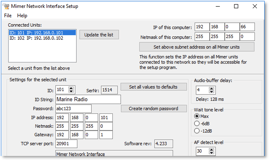
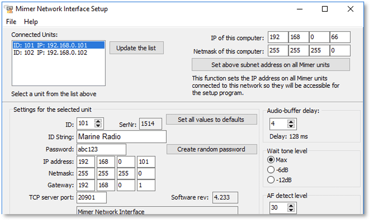
Start the “Network Interface Setup” software.

The basic settings are explained below. There is also more detailed help available on the web page www.lse.se/interfacesettings to assist you with the standard settings and the advanced settings.

Please note that settings in the network interface can only be done when connected in the same LAN subnet, not remote. 

LAN IP

First check that the interface has the same subnet address as your PC. Otherwise use the “Set above subnet address on all Mimer units” button that sets this, or alternatively set your PC to the subnet of the interface.

ID & Name

Select the interface you wish to configure in the list of “Connected Units” by double clicking it.

Select the ID for the interface. Each interface needs a unique ID in the Mimer system. If unsure just set the first interface to 101 and your second to 102 etc. This is the default setting at delivery.

Common practice is to use numbers 101-199 for network interfaces.

Set the ID String to a suitable name that identifies this radio or the site the radio is placed at. You can change it with this software later on if you want to. If unsure just enter “Radio 1”. This text will appear on your PC, in the device window, when running Mimer SoftRadio. 

image-png-Mar-10-2026-12-10-08-3389-PM

Password

If you are going to use this interface via a TCP connection (WAN or the Internet) then you need to enter a password. There is also a button that automatically creates a random password. This is better than using a short word or number that may be easy to guess or brute force.

In a local LAN configuration, the password is not used. 


10

IP Address

Select the IP address that the interface is going to use.

Please note that the interface unit always needs a fixed IP address.

If you are going to connect the Interface behind a router then you should set the same IP as the LAN side of the Router is set to. If it is not behind a router then you should set the IP supplied by the ISP.

Please refer to the examples at the end of this guide. 

TCP Server Port

For use over WAN or the Internet set the server port. It should also be set later in Connections Setup, in the operator PC, as “Remote TCP port”.

In a LAN configuration the server port is not used. 

Save

You may leave the other settings at the standard values for now. They can easily be changed later if needed. More reading about the settings can be found on the web pages.

Press the “Write changes to unit” button to store the settings in the Interface. Make sure you remember the full IP address (all four numbers) as you will need it later to configure Mimer SoftRadio on your PC. Also make a note of the password and TCP port if you are going to use it over the Internet.

Exit the “Network Interface Setup” software. 


11

Setup of the operator PC

Start

Start the “Mimer Connections Setup” software.

All settings are also explained on the web page: www.lse.se/pcsettings

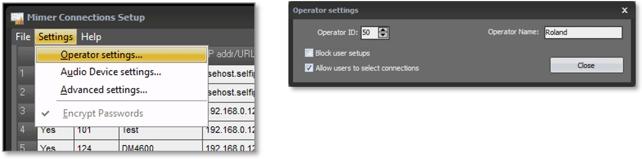
Operator Settings

First select an Operator ID. It is important to select a unique ID for each PC in the Mimer system. Otherwise, it will not be possible to transmit on the radio. If unsure use ID=10 for the first operator, 11 for the next etc.

Common practice is to use numbers 10-99 for operators.

Enter the Name of the operator. 

image-png-Mar-11-2026-08-55-36-7987-AM

12

Tick boxes

There are two tick boxes that can be selected 

Block user setups

This selection blocks the dispatcher from making most of the changes under “Settings” in SoftRadio. The settings can be seen, but are greyed out. 

Allow users to select connections

This selection displays the name field for each connected device and gives the dispatcher a tick box menu where he/she can select what radios should be visible.

This selection is needed when you have “Tabs” activated so the dispatcher can select devices for each tab. 

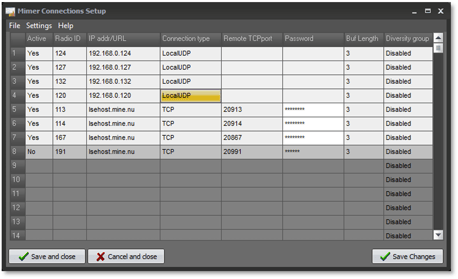
Specify a radio

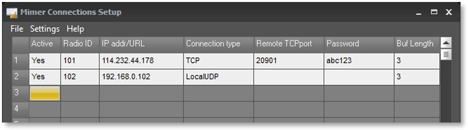
Add a row that specifies the network interface you want to connect to:

  • Set Active to Yes on the first line.

  • Enter the Radio ID. (Same as you set in the Network Interface Setup) 

IP address/URL to the interface

Radio in the same LAN:

  • Enter the IP address noted in the Network Interface Setup above.

Radio connected over WAN:

  • Enter the IP Address to the connection where the Router connecting to the Network Interface is.

Radio connected over the Internet:

  • Enter the IP Address (as provided by the ISP) or the URL to the connection where the Router connecting to the Network Interface is.

In systems with a Mimer RadioServer or Mimer NetworkRepeater, please see the respective setup guides for details.

13

Connection Type

Select the Connection type.

  • In local systems (same LAN subnet) always use “Local UDP”.

  • For all other connections select TCP.

Please also refer to the examples at the end of this guide.

Password & Ports

For a TCP connection you must also specify the password for the interface.

You must also select the Remote TCP port. This is configured in the interface as the TCP server Port. The default for the interfaces is Port 20901. (If you have several interfaces behind a router you will want to use port forwarding to route the data to each interface. You will then need to set different port numbers for each interface.) 

image-png-Mar-10-2026-12-30-41-5559-PM

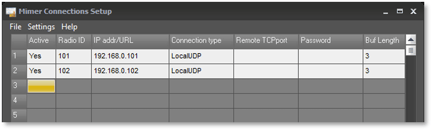
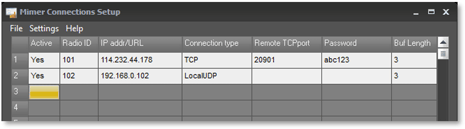
 Example of Mimer Connections Setup 

Buffer length

The buffer length sets the number of audio packets that are sampled during audio reception. Connections with high jitter requires a higher buffer value for the operator not to experience drop outs in the audio.

Local UDP Connection

For a “Local UDP” connection a value of 2-3 is sufficient, 3 is default.


14

TCP Connection

For a TCP connection (WAN or the Internet) a “Buf Length” value of 3-5 is recommended. If you encounter problems with drop-outs on potentially unstable connections you will need to increase the buffer length value.

We recommend that you increase it in steps of 2 or 3 units until the problem disappears.

Buffer length setting is further explained on this web page:
www.lse.se/audio

Multiple radios

Repeat the steps above for each radio in the system.

Tip: If you have more than one operator PC to configure, then you can save the settings on a USB stick and export them to another PC, instead of configuring everything multiple times. Don't forget to change the “Operator ID” on each PC.

In the menu at the top, select; File: Export to file… 

Select Audio Devices

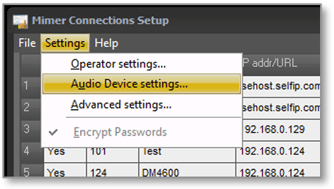
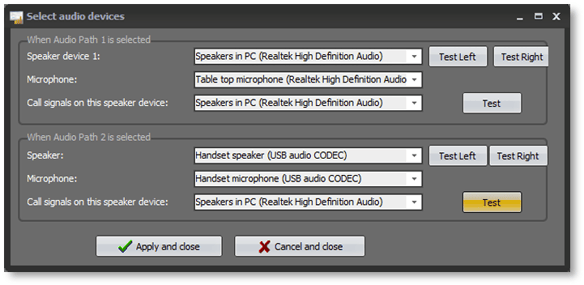
Behind the menu “Audio Device Settings” is another menu where you choose which audio devices to use.

image-png-Mar-10-2026-12-50-47-3579-PMIn the basic software there is one device setting and when using the option for operator selection of audio devices, there are two. With the option for Multiple speakers there are even more selections. 
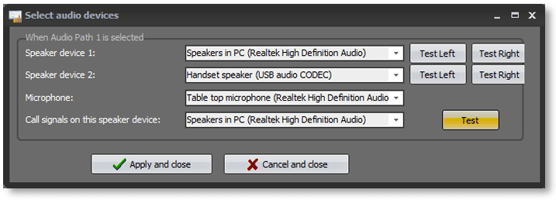
image-png-Mar-10-2026-12-51-44-4606-PM

The selections correspond to the audio devices that are present in the operator PC (the audio cards connected). More information on setting the audio in the PC is found further down in this manual. 


15

image-png-Mar-10-2026-12-52-33-2990-PM

For testing of where the audio goes, there are “Test” buttons for each device.

The audio functions are further described on the web page: www.lse.se/audio

Advanced

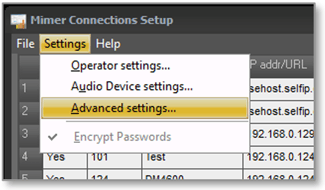
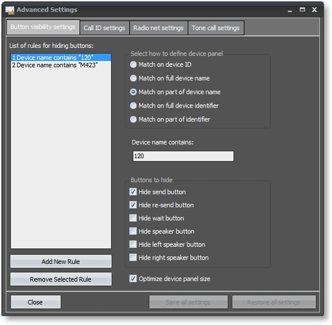
Under Settings there is an “Advanced Settings” selection. 


16

Button Visibility Settings

The first tab there holds the function for hiding keys on the SoftRadio devices. This is mostly used on radios that the dispatcher is not allowed to transmit on. Then you can take away the PTT key and the Re-send key.

Set up as many rules as you need, with the details you need. If you also tick in the box “Optimize device panel size” at the bottom, the device panels will become smaller, reflecting the lesser number of keys. Combined with Movable device panels in SoftRadio you can slim line the look of SoftRadio. Effective when you have a large number of devices. 

Call ID / Radio Net / Tone Call Settings

The other tabs in Advanced Settings are used when you have the option RadioCalls installed and are explained in the separate manual for this option. 

Save

Press [Apply and close] 


17

Cross references

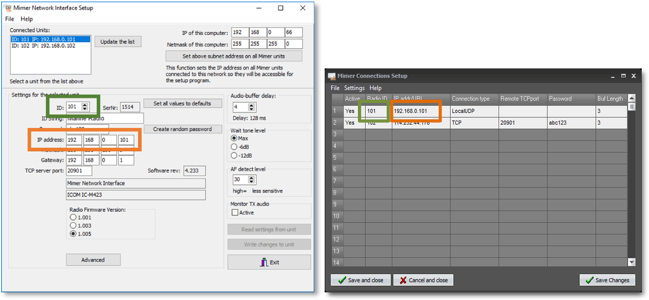
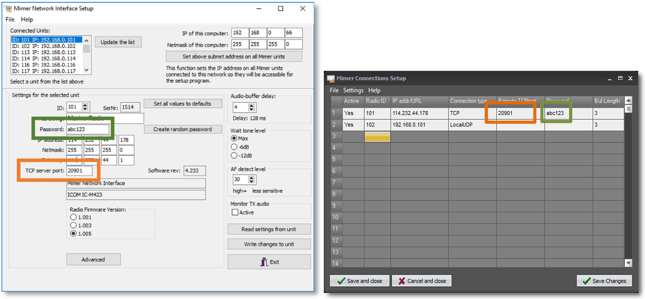
The settings that you have made in the Network Interface shall correspond with the settings in the operator PC. 

Radio ID and IP Address corresponds like this. Needed for all connections. 

 Password and TCP server port corresponds like this. To be used over WAN or the Internet. 

Please note that these settings are different if you have a NetworkRepeater and/or a RadioServer in the setup. Please see the separate instructions for them. 


18

Startup of Mimer SoftRadio 

Start the “Mimer SoftRadio” software on the operator PC.

If all is well then, the radio you have just configured in the “Connections Setup” software will show up. 

image-png-Mar-10-2026-01-04-53-1767-PM


If not, check your settings again and then check that it is not a firewall, in your PC or in the network, that is blocking the connections.

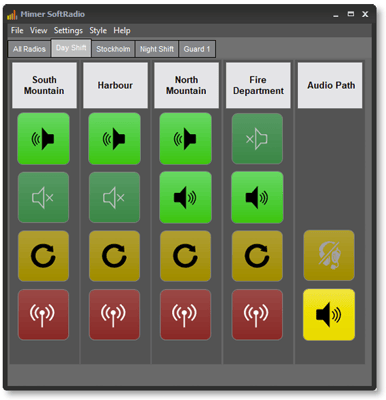
In the dropdown menu “Settings” you can customise the look of your SoftRadio panel with the buttons you need, the size and shape of your panel etc. All settings are explained on the web page: www.lse.se/usersettings and in the guide “Setting up and using SoftRadio”.

Don´t be afraid to click on different settings under “Settings” and “Style” to see what layouts are possible, try for example the “Vertical layout”.

Please note that each Virtual Control Head for the different radios also has its own settings menu. Here you can set the size of the virtual control head and what part of the radios display that shall be visible on the main device panel. 


19

Now Mimer SoftRadio is set up with a basic configuration.

The operation of the software itself is further explained in the guide “Setting up and using SoftRadio”.

Please feel free to contact your Mimer Reseller with questions regarding the installation or use of Mimer SoftRadio.

Audio settings in your PC

It is very likely that you will need to adjust the audio settings in your PC. The microphone in your PC might also need to be switched on if it has not been used before. This is all done in Windows and/or the specific setup for your PC´s audio card.

There is a deeper explanation of audio settings on the web page: www.lse.se/audio

Mimer Audio Levels

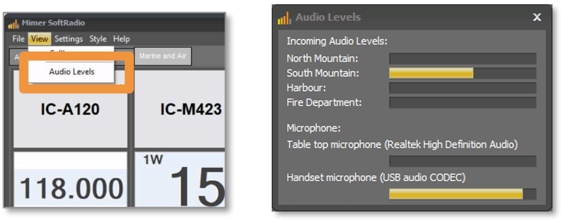
There is a window in SoftRadio to help with the audio settings.

This is a peak meter that will show level bar graphs of the digital output signal from SoftRadio (generated by the microphone and sent in digital form over the network to the interface) and radio sounds (captured from the AF input in the interface and sent in digital form to the PC) in SoftRadio. 

image-png-Mar-10-2026-01-14-20-8955-PM

Select “Audio Levels” under View, to get the Audio Levels window 


20

Always strive to adjust the digital levels displayed by Audio Levels so that they just reach 100% on high peaks. If these are set too high then the signal will be digitally cut. Especially in the PC speaker this will sound very distorted. It is less of a problem at the radio modulation input because radios usually have a limiter and a sharp bandwidth limitation at the input. If on the other hand these signals are too low then the sound quality may be poor because the full dynamic range will not be used. 

Incoming audio from the radio receiver

The audio level in the system is set from factory for radios that have a fixed volume level output. This applies to most radios and these will rarely need to be adjusted.

Radios that don´t have a fixed audio output, might need adjustment. Adjust the output level from the radio so that you get 100% levels only on high sound peaks. 

Outgoing audio to the radio transmitter

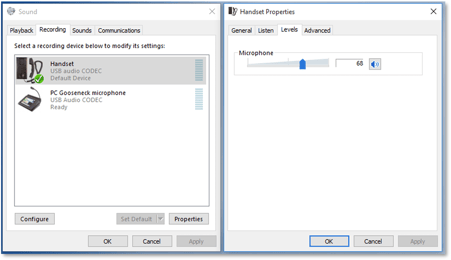
Speak in the PC microphone and adjust the Windows Microphone level so that you get 100% levels on high sound peaks at your normal distance from the microphone. 

image-png-Mar-10-2026-01-17-00-4683-PM

 Example of Sound Card settings in Windows 

Now use a second radio that is set to the same channel as the SoftRadio connected radio. Press the PTT button in SoftRadio and speak in the microphone. Listen to the sound in your second radio, it should have the same level as when other radios in the system transmits. 

Tip on audio settings

If you have more than one microphone and speaker or headset connected to the PC it is sometimes hard to select the correct one, both when doing the audio level adjustments and when doing the settings in “Mimer Connection Setup”.

It is then practical to change the name label on each audio device and also the icon next to the name. Instead of having two units that both are called “Microphone” you can for example have one “PC Gooseneck” and one “Handset”. See the example above.

The text can be changed freely under the General tab. 


21

Examples of IP-settings

On the following pages are examples of how to set the IP addresses, ports etc. in different setup situations.

All examples refer to a system without servers. If you have a NetworkRepeater and/or a RadioServer in the system, please also see the separate manuals for them.

Note: Since it is the PC client that makes the connection to the network interface, the interface needs to have a fixed IP address. The operator PC may have either a fixed address or a dynamic address.

Tip before you go live

We recommend that if you are a first-time user, always begin with the first set up for a local connection. This will give you an understanding of how the system works, and you can test all audio settings etc. with the radio right beside you.

For test and demo you may install the software on your own PC without an extra software license.

If you are planning on remote use, then after you have got everything working local, set the system up through the Internet but keep the PC and the radio right beside you. Then it is easy to test the correct settings in routers and firewalls.

When all of this is correct and you have a good understanding of the system, then continue with doing the setup for the end user. 

Local net with standard subnet 

image-png-Mar-10-2026-01-22-24-3356-PM

Radio operator (standard PC) with fixed or dynamic IP-address

Both interface and operator are in the same LAN subnet. Set up the connection as UDP.

The interface shall have a local address in the same subnet as the operator PC. In the example the operator has the IP 192.168.0.66 and the interface the IP 192.168.0.101.


22

image-png-Mar-10-2026-01-24-44-1640-PM

(In the Connection Setup example above also a second radio is connected with the IP 192.168.0.102.) 

Connecting over the Internet without using a router 

image-png-Mar-10-2026-01-25-54-0007-PM

Radio operator (standard PC) with fixed or dynamic IP-address 

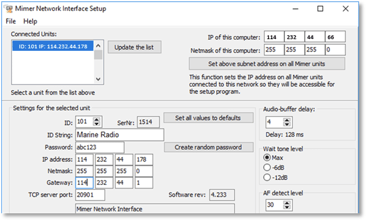
Interface connected to the Internet at IP 114.232.44.178. 

image-png-Mar-10-2026-01-26-43-9935-PM

The interface is given the external IP address. The operator software is programmed to connect to that IP through a TCP connection. 

image-png-Mar-10-2026-01-27-44-4917-PM

TCP port and password needs to match when used over TCP.

(In the Connection Setup example above also a second radio is connected local, with the IP 192.168.0.102.) 

23

Connecting over the Internet using a router 

image-png-Mar-10-2026-01-29-32-1922-PM

Radio operator (standard PC) with fixed or dynamic IP-address 

The router is connected to the Internet on IP 114.232.44.178. On the inside of the router is a LAN in the span 192.168.0.XXX. 

image-png-Mar-10-2026-01-30-49-1589-PM

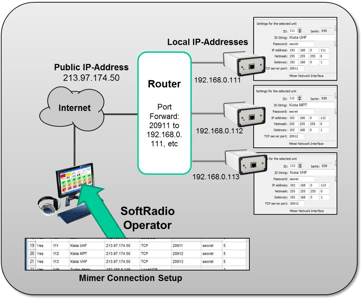
The interface is programmed to work on the inside LAN. A TCP port is opened in the router that points port 20901 to the IP 192.168.0.101 where the interface is. 

image-png-Mar-10-2026-01-31-36-4998-PM

The operator software is programmed to connect to the Internet IP through a TCP connection. TCP port and password needs to match.

(In the Connection Setup example above also a second radio is connected local with the IP 192.168.0.102.) 


24

Connecting over the Internet using a router, with three radios

In this example three radios are at the same radio site and they will be operated by only one operator that is connected over the Internet.

Please note that the Public IP address needs to be static (fixed). 

Connecting several operators over the Internet

When more than one operator needs to connect to each radio over the Internet, or a WAN, then you will need to use either a Mimer RadioServer or a Mimer NetworkRepeater.

More information is available on:

www.lse.se/radioserver

www.lse.se/networkrepeater


25

Error messages

If there is an error in the IP connection to the interface at the radio, you will get a message in the name bar of the device.

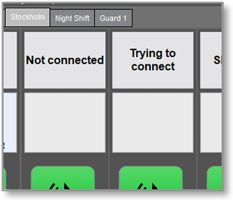
A UDP connection will say “Not Connected” and a TCP connection will alter between “Not Connected” and “Trying to connect”. 

Possible faults may for example be:

  • The wrong information is entered in Connection Setup

  • A problem with the IP connection

  • No power at the network interface 

Fault finding help

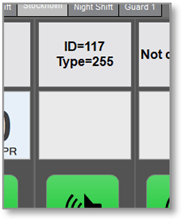
Holding down “Shift” and right clicking in the name bar will show the Mimer ID number of the radio setup for this device.

You will also see a Type number. This is a technical number describing what type of interface that is connected. If there is no connection, the Type will always be indicated as 255, which means “unknown”.


26

Mimer Connection Manager

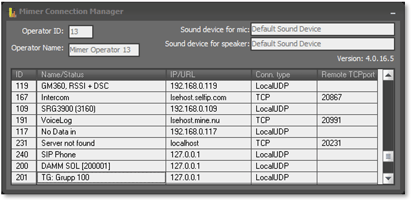
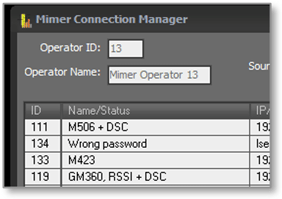
Mimer Connection Manager is the background software that makes the actual connections to all network interfaces. You can open a status window that will show your connections, active or not, and also operator name, operator ID and active sound devices.

The status window is opened using the small icon in the system tray (Notification Area) at the righthand lower corner of the Windows desktop. 

Here you can get some extra information, for example if you have entered a password in Connections Setup that doesn´t match the password in the interface, the information will be “Wrong Password”. 

Fault codes in Connection Manager using UDP

When the SoftRadio client is connected directly to a Network Interface or to a NetworkRepeater.

Online
Status from the interface is received, but the interface does not answer with a type code. Will be shown if there is an IP connection, but the IP address or the Netmask setting is wrong. 

No Data in 
No status received from the interface. Will be shown if there is no IP connection to the interface.  


27

Fault codes in Connection Manager using TCP

When the SoftRadio client is connected directly to a Network Interface, over Wan or the Internet, or to a RadioServer. Both referred to as TCP-Server below.

Not connected
No connection, waiting to try to connect again.  

Connecting
Trying to create a TCP connection.  

Server not found
Could not find a TCP-Server to connect to at the given IP address and port number.  

Logging on
Connected to a TCP-Server and trying to log on to it. 

User not allowed
The user ID number is not allowed (not found in the Radio Server’s white list). 

Wrong password
Wrong password entered in Connection Setup. 

No place on server
The RadioServer will not allow more connections. 

User exists
Another user with the same ID is already logged on to the RadioServer. 

Questions 

There is an FAQ in the web pages with answers to most of the common questions. www.lse.se/faq


28

Options to SoftRadio

SoftRadio can be equipped with a number of options.

Most of them are explained on the web pages and in the guide “Options” found on the brochures page, www.lse.se/brochures.

The setup of the options are further described in either the operator setup guide “Configuring and using SoftRadio”, or in separate guides for each option. The guides can all be found on the download page for setup guides: www.lse.se/setup.

SoftRadio is basically divided in the standard version, that holds up to eight devices, and in the XL version that holds up to 30 devices, where the devices also can be sorted in tabs and the advanced options can be used. 

Standard Options 

2867  CrossPatch
Links two or more radios together through Mimer SoftRadio 
3013  Custom Functions Panel
Easy selection of audio devices and a group send function 
3046  RadioCalls
Gives a contact list and pre-programmed text messages * Displays the latest incoming calls (good when using PTT-ID) * 
3115  Marine Calls
Makes it possible to receive and transmit DSC calls and to receive ATIS calls, also includes a CallLog function 
3151  ATIS Export
Sends the decoded ATIS message to third party software 
3154  SIP Phone Client
Gives the operator a SIP device panel 
 2887/03  Tone PTT Control
For base station systems that use single tone for PTT 
 2887/04  External Alarm
Gives a logical output in the PC Com-port at selective calls 
3103  Diversity (voting)
Selects audio from the best receiver when connecting more than one receiver on the same radio channel * 
3289  Mimer Kiosk
A setup script to run the operator PC in “Kiosk mode” 


 * Works only on specific radios, please refer to web or ask 


29

Options that requires XL to be installed 

 3299  Multi Speakers (formerly known as Quad Speakers) 
Let´s you direct the audio into eight speakers (instead of two) 
 3049  Multiple Hotkeys 
Gives the possibility to dedicate separate keyboard keys to each radios PTT, volume and speaker on/off 
 3236  Advanced Audio Messages 
Gives the possibility to record and store multiple audio messages that can be used as manual or automatic answers to calls 
 3251  Auto Rx Response 
Add on to “3236-Advanced Audio Messages” Sends an audio message after audio reception 
 3305  Profiles 
Gives the operator PC many profiles, editable by a supervisor
Only sold for systems with 10 or more operators 
 3306  Zone Extensions 
Expands the number of nodes a SoftRadio system can handle 
 3298  User Status Reports 
Background software. Sends operator info to the InfoServer. 
 3178  Damm Tetraflex 
Connects directly into the Damm infrastructure w/o a donor radio.
You can use as many talk groups as you like.
www.lse.se/damm 


30
 
Mimer SoftRadio

Proudly made in Sweden

Connect Your Radios.
Anywhere. Over Any Network


Contact

LS Electronics AB

www.lse.se/contact-sales

info@lse.se