<img src="https://www.inventive-7-intuition.com/807131.png" style="display:none;">
 
Company Logo
image-png-Mar-11-2026-07-46-25-5635-AM


Mimer Damm Option

Technical description and set-up instructions

Art n:o
3178
Revision
-
Release date
Dec 15, 2020

This guide will help with the setup and use of your Mimer Damm dispatch Option. Please also refer to the standard manual for Mimer SoftRadio and the web pages www.lse.se, www.lse.se/damm.

General

Mimer SoftRadio is a dispatch system that handles radios, intercoms and phones from a common PC GUI.

The most common setup is that fixed radio units are connected through a network interface and IP to the SoftRadio operator PC.

The Damm Option makes it possible to connect the SoftRadio dispatcher directly to a Damm TetraFlex infrastructure, without a fixed radio. The dispatcher then gets the possibility to handle all functions in the Tetra system from his SoftRadio GUI. This meansthat he can handle Tetra callsfrom the same GUI and the same headset as he does for ordinary radio calls and phone calls.

The Damm Option requires no extra hardware apart from a license dongle provided by Damm. Connection is made over IP to your Damm infrastructure. 


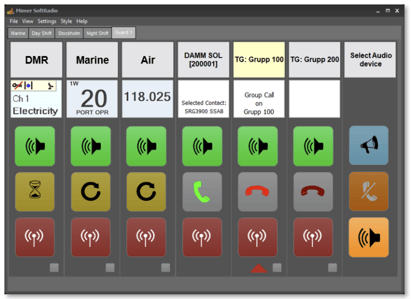
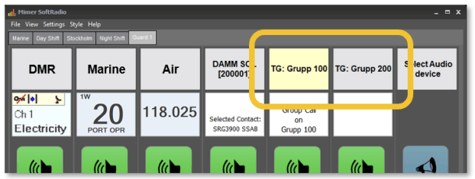
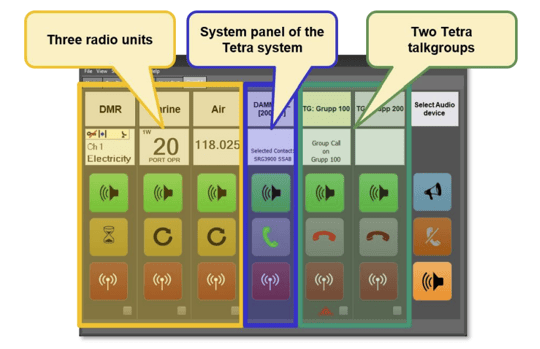
Example of SoftRadio with three radios (DMR, Marine and Airband) and one Tetra system with two talkgroups attached.


3

Damm Option installation 

Recommended hardware and software 

The PC running the Damm Option also needs to have Mimer SoftRadio XL installed.

Mimer SoftRadio needs to be version 3.5.2.4 or higher for the Damm Option to work. 

Software installation 

Run the installation from the supplied USB stick or online download.

The installation will setup the Damm Option. Restart Mimer SoftRadio. 

Software activation 

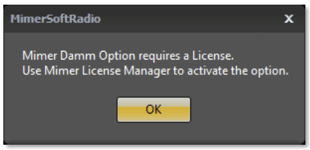
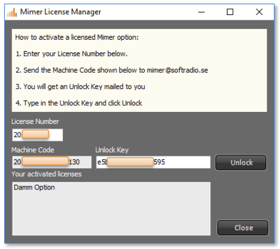
When starting the option, you will be asked for an unlock code. You get the code by emailing your license number and a machine code as asked for on the screen. Your email will be answered with the unlock code. 

Open the Mimer License Manager from the list of programs under Mimer SoftRadio v4, in the PC´s program menu. 

After entering the received unlock code this process is ready and need no further attention until the day you reinstall on the same, or another PC.

Damm license dongle

Insert the operator license dongle supplied together with the Damm TetraFlex system.


4

Configuration 

You need to configure a few things in order to connect to the Damm TetraFlex system 

Damm system settings 

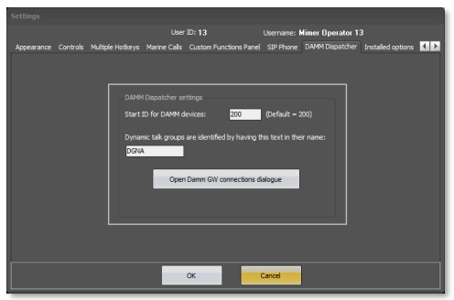
Open the Settings menu in SoftRadio and select the DAMM Dispatcher tab.

Set the two variables, or use the defaults, and then push “Open DAMM GW connections dialogue”. 

Damm Dispatch Tab in Settings 

Set the Start ID for Damm devices. 

This is how the talkgroups used in the Damm system are identified within the SoftRadio system. Default is set to 200.

Usually dispatchers are numbered from 10-99, radio devices from 100-190 and for example VoiceLog at 191. This basically leaves 200-240 for the Tetra talkgroups. '

Identifier for DGNA groups 

For the system to recognize which talkgroups are standard and which are used as dynamic talkgroups (DGNA) by the system, a text string is set in the talkgroup name when set up in the Damm system.

Enter this text string here so that SoftRadio can identify the dynamic groups.

Default is set to DGNA.

5

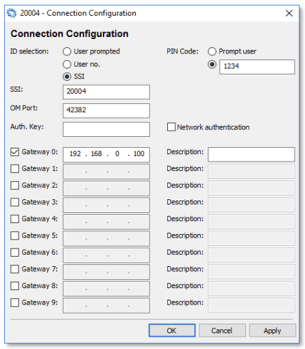
Damm Connection Configuration Dialogue

Open the dialogue through the key “Open Damm GW connections dialogue” 

Set the:

• ID Selection to SSI, and then the number provided for the operator

• PIN Code as supplied by Damm

• OM Port as supplied by Damm

• Check the “Gateway 0”-tickbox and enter the IP address to the system.

Press “Apply”. 


6

Basic functionality 

Please note that the functions in your Damm dispatcher will depend highly on what functions your Damm system is programmed to allow you.

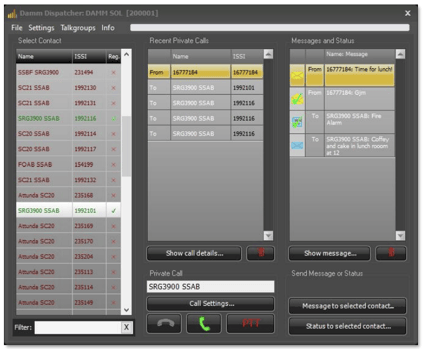
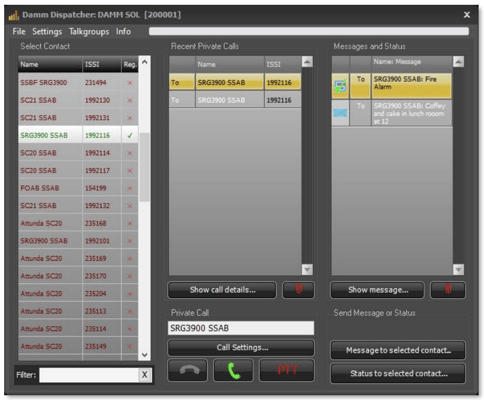
The main dispatcher window shows all your contacts, your recent calls and your recent messages.

From this menu you handle the private calls and the messages. Here you also set up which talkgroups you would like to monitor and talk on.

After setting up the talkgroups you are ready to use the system. 

Setting up talkgroups 

Open the Damm Dispatcher main window by clicking the name bar in SoftRadio. 

Damm Dispatcher, main window


7

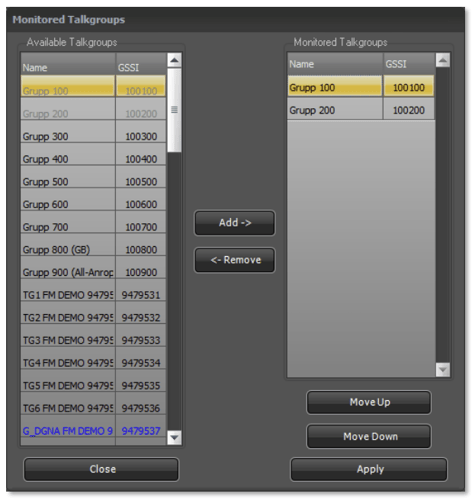
Click “Talkgroups” on the menu bar in the main window, the dialogue below opens. 

Selection of monitored talkgroups

Click the talkgroups that you would like to monitor in the “Available” list and move them to the “Monitored” list with the “Add button”. Remove unwanted talkgroups with the “Remove button”.

You can then sort them with the “Move Up” and “Move Down” keys.

After pressing “Apply” the selected talkgroups will be shown and used in SoftRadio in the same manner as ordinary radios connected to SoftRadio. 

The selected talkgroups show up in SoftRadio


8

Allowing the talkgroups to be shown 

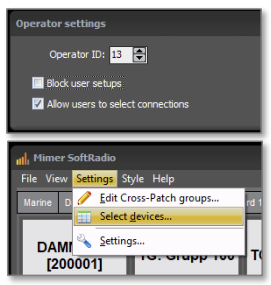
If the SoftRadio GUI is set up so that the operator may select the devices that shall be shown on his screen. (This is mainly used when the “tabs” option is used.) Then you also need to tick in the boxes that shows the Tetra system and the talkgroups on the selected tab. 

User Interface 

The standard GUI of SoftRadio will be expanded with rows or columns for the Tetra system and for the talkgroups.

The look on your GUI will depend on the number of radios that are connected and the number of talkgroups that you monitor.

In the example here, the devices are set up in columns, and you have three radios plus the Tetra system. The Tetra system is set up with monitoring of two talkgroups. 

Example with three radios, one Tetra system and two talkgroups 


9

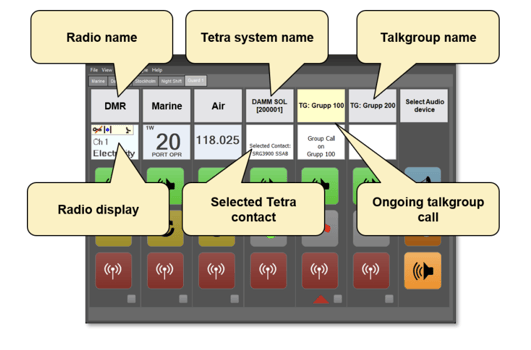
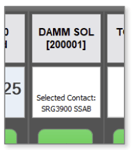
The area normally used for the radio display, is in the Tetra panels used for showing information on selected radio, incoming calls, ongoing talkgroup calls etc.

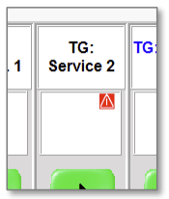
The display can also show icons telling that an SDS message has arrived or that an emergency call has been received. Further described later in this manual. 

Information 

The display area shows who is calling or the radio you have selected. 

Keys 

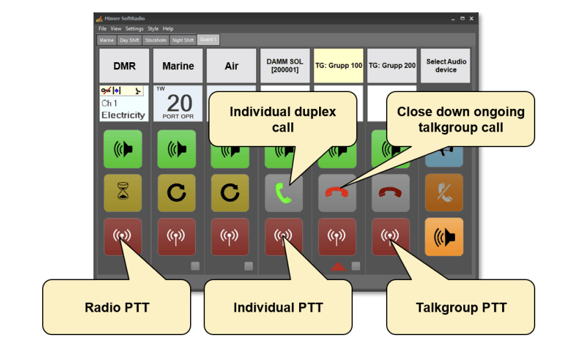
There are some unique keys used for Tetra calls. 


10

Using Talkgroups 

Listening and transmitting on talkgroups is the basic communication method in a Tetra network. In SoftRadio this is just as easy as communication over an ordinary radio. 

Talking on talkgroups 

Use the PTT button on the talkgroups device panel for transmit. Push to talk and release to listen.

Set the speakers for listening on/off and left/right with the speaker buttons. 

SDS and Status messaging on talkgroups 

You can send and receive SDS messages and Status messages on talkgroups. Although it is more common to do this on an individual basis.

Click the name bar of the talkgroup and the message panel will open for that talkgroup.

From this menu you can read and send messages. More info below under SDS and Status messaging. 

Making Private Calls 

In a Tetra system you can always select a contact and make a private call to one separate user without other users being able to listen to the conversation.

Select a radio to call by clicking in the contact list or on a post in the history list.

When making a call you can also set a few parameters, described below. Please note that the settings will be left also for your next call if you don´t reselect manually. 


11

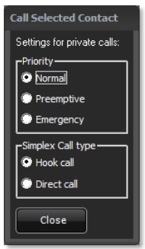
Priority Level  

Each call can have a priority level.

Normal is exactly what it soundslike. Your normal call without any higher priority than usual.

Preemptive has a higher priority and will go through even if the system is congested or the user is busy.

Emergency has top priority and should only be used in emergency situations. It will also trigger the called radio so that it alerts the user of the emergency. More info further down. 
Simplex call 

A simplex private call is done by simply selecting whom to call and then press PTT on either the Dispatcher window or on the main SoftRadio window.

A simplex private call means that you push to talk and release to listen, just as in a talkgroup call. The call is ended with the red handset key.

You can set your simplex private calls between “Hook Call” and “Direct Call”. The last selected call type will be used next time if you don´t do any changes.

Hook Call means that the called radio user needs to answer the call with his PTT key before the call is set up and you can talk to him.

Direct Call means that your transmission goes directly to the called radios speaker without the need for the called user to actively answer the call. 

Duplex call 

A duplex call is exchanged without the PTT button. Both parties can speak and listen simultaneously like a phone call. This takes more recourses from the Tetra system and should therefore be used with care.

A duplex private call is done by simply selecting whom to call and then press the green handset key on either the Dispatcher window or on the main SoftRadio window. The radio user needs to answer the call with his green handset key on the Tetra terminal.



12

History

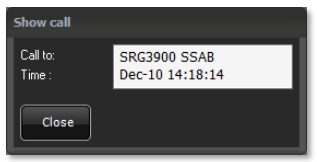
In the middle of the Dispatch window there is a recent calls list where you can see incoming and outgoing calls. Double clicking on an entry or pushing “Show call” will display more information.

Entries in the list can be deleted by pushing the waste paper basket key. The list will hold 200 entries, then the oldest is deleted. 

Making a direct private call 

You can make a private call directly from the SoftRadio main window if the contact you would like to call is already selected.

Just push the PTT for a simplex call or the green handset key for a duplex call. 

Answering Private calls 

Simplex Private calls 

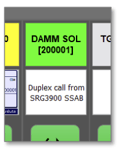
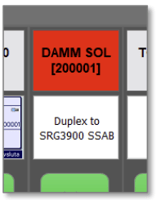
When a simplex private call is received, the main Tetra device panel will show this in the display together with a ringing tone and a green blinking indication. A text will tell who is calling.

You can then choose to answer the call with the PTT button or to discard it by pushing the red handset key. 


13

Duplex private calls 

When a duplex private call is received, the main Tetra device panel will show this in the display together with a ringing tone and a green blinking indication. A text will tell who is calling.

You can then choose to answer the call with the green handset key or to discard it by pushing the red handset key. 

SDS and Status messaging

Sending and receiving text and status is mainly done on an individual basis, but can also be done on a talkgroup basis. 

SDS message to an individual radio 

In the main dispatch window select a contact to send the message to by clicking in the contact list or clicking on an entry in the message history list, and then click “Message to selected contact”. Choose a predefined message from a template or write a new message in the Message box. Select if you would like to have a report when the message has been delivered and/or when it has been consumed (opened).

Send the message with the Send key. 

Status to an individual radio 

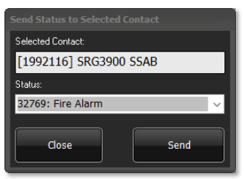
In the main dispatch window select a contact to send the message to and then click “Status to selected contact”. Choose a predefined message from the list. Status messages has no auto report system, so you cannot choose to get a message when it is delivered.

Send the message with the Send key. 


14

Reading a message

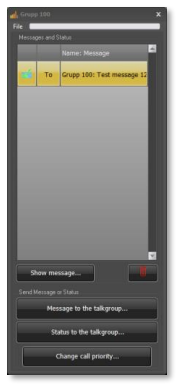
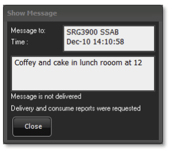
Incoming messages will be shown with a line in the Message and Status list. Double click on the message or push “Show Message” to read it. 

Message icons 

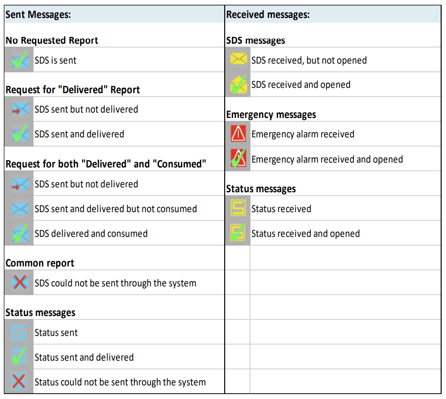
All incoming and outgoing messages get a small icon attached to it. This will tell the status of the message. Incoming, outgoing, delivered, consumed etc.

Incoming and unread messages will also be shown in the main SoftRadio window.

These are the icons that are used with the messages: 


16

History 

At the right of the Dispatch window there is a message list where you can see all incoming and outgoing messages both read and unread. Double clicking on an entry or pushing “Show message” will display more information. Entries in the list can be deleted by pushing the waste paper basket key. The list will hold 200 entries, then the oldest is deleted. 

Edit message templates 

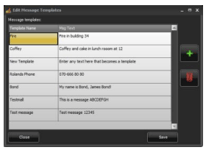
At the menu bar of the main Dispatch window push “Settings” and then select “Edit message templates”.

Here you can define templets to speed up message transmission of things you often send as text. After making a new template push the save button. 

Edit status message codes 

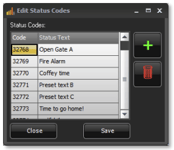
At the menu bar of the main Dispatch window push “Settings” and then select “Edit status message codes”.

Status message codes are predefined messages that are sent over as a numeric value to the radio to save resources in the Tetra network. Each message that you predefine needs also to be predefined in the exact same way in the portables and mobiles. If not, you risk to send one message and the radio user will receive another message or just the numeric value. 


17

Dynamic Groups 

Dynamic Groups (DGNA) are extra talkgroups that can be assigned temporarily to field radios. For example, if you have an incident and need to make a new group of users that normally do not have common talkgroups in their radios.

To use a dynamic group, you need to assign radios to the group. Depending on how the radios are programmed they either need to acknowledge the assignment or they enter directly into the group.

A dynamic group is meant only to be used for a short period of time. Therefor you should detach the users from the group after you are finished with the task that was the reason for the group.

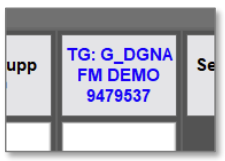
For easy recognition of the DGNA groups their names have a blue font. Defining the DGNA groups are done under “Configuration” earlier in the manual. 

Attach users to DGNA 

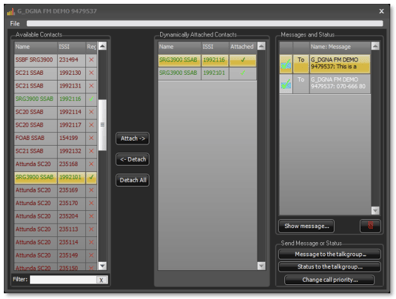
Click the name bar of the dynamic group you would like to assign users to. 

DGNA window

Assign users to the group by selecting them and then push “Attach”.


18

Detach users from DGNA 

Select attached radios one by one and push “Detach” or push “Detach all”. 

Messages 

In the same manner as for ordinary talkgroups you can send and receive SDS and status messages to/from the whole group. 

Emergency Call Handling 

Receiving an emergency call 

If an emergency call is sent on a talkgroup the dispatch GUI will react to this both visually and audible.

The talkgroup display window will show an emergency icon and the background will become pink. When the call is answered the pink colour will be reset.

As long as the pink colour is there, the emergency priority is used in the Tetra system. 

Sending an emergency call 

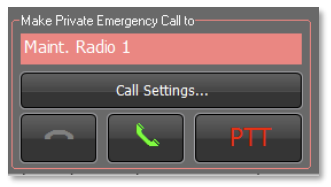
You can select a priority level for each private call. If you set the level to emergency you will get the highest possible priority in the system. To make you aware that you have chosen this priority your call panel and your device panel’s window will be coloured pink.

This can also be done on each talkgroup 


19

Emergency Voice Streams 

In a Damm-system there is a cost for each voice stream used by the operator. When you order the USB stick for the operator, you need to specify how many voice streams you would like to have for the operator. If you have ordered to few voice streams, this could become a problem at “rush hour” in the Tetra system, and you miss a call. SoftRadio makes sure that this never happens to an emergency call. When using SoftRadio to Damm, an incoming emergency will disconnect another call if there are no available voice streams, ensuring that the emergency gets through. 

Other Functions 

The Contact List 

The contacts in the list are fetched directly from the Tetra infrastructure. This means that you always have a correct list of users in the system. The list will also show, in real time, which of the radios that are registered to the system. You can only call and send messages if the radio is registered. Please note that a registered radio can be temporarily unavailable, for example when being in radio shadow from the system, but still show as available in the list. 

Contact filtering 

The contact list can be filtered (searched) by entering a name, part of a name or a number in the box below the list. The entry for filtering can be anywhere in the name. 

Call back 

When clicking an entry in the “Recent Calls” list the radio of that entry is highlighted in the contact list and selected below as your next call. This makes it easy to make a call back to a missed call or a recently called user. 

Window size 

The size of the main window and the talkgroup windows can be set in four different sizes. The settings are found under “Size” in the top menu bar. 


20

Optional Functions 

Cross-Patching of calls 

With the option Mimer CrossPatch installed, Tetra talkgroup calls can be manually patched together with ordinary radio calls, or with phone calls if a phone option is installed in SoftRadio. 

Recording of calls 

With the server Mimer VoiceLog installed in your Mimer SoftRadio system all audio is recorded for both ordinary radio calls and Tetra calls. All recordings are marked with a date and a time stamp. 

More SoftRadio functions 

The Mimer SoftRadio system can handle many different devices and functions. Most of the functions are compatible with the option for DAMM-systems. Please see the manuals and the web pages for SoftRadio for more information.

Error messages 

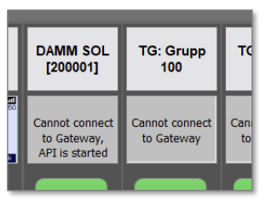
Cannot connect to Gateway – API is started 

This means that the API is running in the operator PC, you have the dongle connected, but SoftRadio cannot get in contact with the Damm base station.


Possible problems could be:

  • Wrong information entered; IP-address, password etc.

  • The Damm Gateway will not allow the connection

  • No IP connection to the base station

  • No power at the Damm Gateway 


21

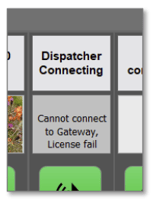
Cannot connect to Gateway – License fail 

This means that the dongle is missing from the operator PC or that its license information is incorrect. 

No file access 

This means that the settings files can´t be red. 

No network 

The operator PC has no network connection. 

All licensed voice streams are in use 

The DAMM system only allows as many voice streams to each operator as the dongle specifies. If there are more calls than the dongle allows, one of these messages will be shown:

• The maximum number of licensed audio streams are in use. Further calls will not be accepted.

• The maximum number of licensed audio streams have been exceeded. A call has been disconnected.

The solution is, to either monitor less talk groups, or to upgrade the dongle to get more voice streams.

Please note that this does not affect an incoming emergency call, since with Mimer SoftRadio, it will always get a voice stream. 

22
 
Mimer SoftRadio

Proudly made in Sweden

Connect Your Radios.
Anywhere. Over Any Network


Contact

LS Electronics AB

www.lse.se/contact-sales

info@lse.se