<img src="https://www.inventive-7-intuition.com/807131.png" style="display:none;">
 
Company Logo
SIP-12


Mimer SIP Connect

Technical description and set-up instructions

Art n:o
3154 & 3154/02
Revision
-
Release date
Oct 14, 2024

Add your introductory product description here. Describe the product, its purpose, and key use cases in a few sentences.

General

Mimer SoftRadio is a dispatch system that handles radios, intercoms and phones from a common PC GUI.

Mimer SIP Connect, 3154

The SIP Option makes it possible to connect the dispatcher to a SIP exchange. The dispatcher then gets a SIP client in his SoftRadio GUI so that phone calls can be handled from the same GUI and the same headset as when working with radio calls.

The SIP Option requires no extra hardware, it connects over IP to your SIP exchange. With the SIP option each operator PC gets its own telephone number.

Mimer Multi SIP Connect, 3154/02

As standard you can connect one SIP account to the SoftRadio operator. With the Multi SIP option you can connect up to 10 SIP accounts to each SoftRadio operator. Practical if you need to connect to several SIP providers or handle several different phone numbers.

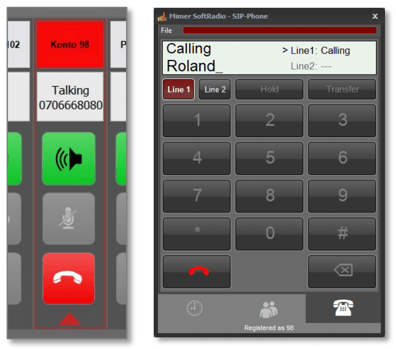
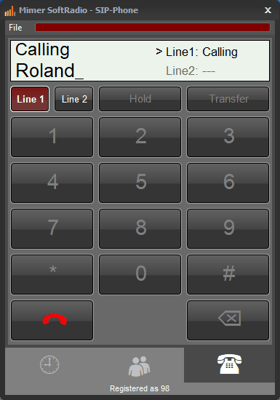
Example of SoftRadio device panel and number entry window with ongoing call


Other phone systems

There used to be a Mimer interface for POTS and for GSM-phones. These are both discontinued.

3

SIP Option installation

Recommended hardware and software

The PC running the SIP Option also needs to have the basic software “Mimer SoftRadio” installed.

Mimer SoftRadio needs to be version 4.0.20.0 or higher for the SIP Option to work. (There is also an older version of SIP that works from 3.5.2.0)

Installation

Run the installation from the supplied USB stick or online download.

The installation will setup the SIP Option.

Restart Mimer SoftRadio.


4

Configuration

Before use, you need to do some settings.

SIP exchange settings

First of all, you need to have a SIP account. You shall either have your own private SIP Exchange or an account at one of the many on-line SIP providers that exists.

How this is done and what functions you can use will be different depending on the type of SIP exchange that you are using. Please refer to the manuals of the exchange or information you have got from the SIP provider you are using. If uncertain talk to your IT manager.

SIP Option settings

You will find the basic configurations for the SIP account under “Settings” in Mimer SoftRadio. Select the “SIP Phone” tab.
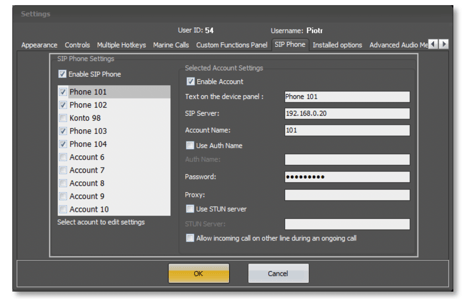
 

Setup window


Both in the standard SIP option and in the Multi SIP option you can configure up to 10 accounts. But with the standard option only one of the accounts can be active.

Select the first account in the list to the left and then enter the information that is appropriate for your account. Typically, you need the SIP Server name or IP (may also be called something like host name, SIP proxy, etc.), an account name, and the password for the account. Sometimes you may also need to enter an outbound proxy or specify the use of a STUN server. If so, this shall be specified by the SIP provider. If uncertain about the entries talk to your IT manager

5

The first line is the text that will appear on your SoftRadio device panel. Here you can enter any text you like. Default is “Account 1”.

If you have a Multi SIP option, or if you would like to be able to switch between several accounts in the standard SIP, click the next account and repeat the setup for the next connection.

Using “Tabs”

Note that if you have the “Tabs” function active in SoftRadio XL, you need to select on which tab(s) you would like the SIP phone(s) to be visible. This is done under “Select Devices” on the “Settings” menu in SoftRadio.

Check the connection

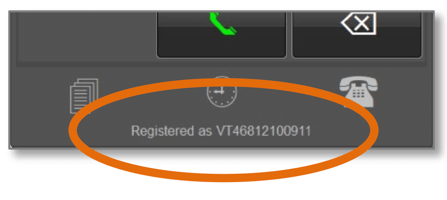
When correctly connected to the SIP Exchange the Phone Panel will show your registered number at the bottom.

Make calls to and from the SIP device, to see that the call function works and that your audio works as expected.

Extra settings

  • There is also a tick box where you can select if you would like it to ring in your phone client, when a second call comes in, while you already have an ongoing call.

  • On the “Controls” tab in Settings you can select that the volume of radio calls shall be decreased when a phone call is active.

Technical note

The SIP option automatically adds a device in SoftRadio with ID 240, without the need of adding it in “Connection Setup”. If you have multiple SIP accounts, they will be numbered from 240 to 249. 

6

Basic functionality

The functions in your SIP client will depend highly on what functions your SIP exchange allows you.

Normally your client is set up with a direct phone number in the SIP exchange. It can also be set up with a group number or similar depending on the functions available and the functions needed.

Basically, you have access to two “phone lines”, on the same account. You can have separate calls ongoing on each of the two lines and switch between them. This is for example used if you have an ongoing call and needs to call someone else and check something. You can then put the first call on hold and use the other line.

When using SIP with Mimer SoftRadio each operator gets his own telephone number. (When using other phones like GSM/3G in SoftRadio, the phone resource is a common function and shared by all operators like one of the radios).

The SIP client also gives you a list of previous calls and a contact list.


7

Using the SIP client

After installation and the settings are done, the client is ready for use. You should now see an extra device panel named “Account 1”, or another name if you have changed the name in settings, in your main SoftRadio GUI. This device panel will show gray/red/green handset symbols instead of the Resend button and the PTT button.

Pushing the name list will open/close the SIP panel in the same way as you open a radios virtual control head.

The green handset key will light up to show that the panel is active. The green and red handset keys on the panel are parallel to the keys on the device panel in the SoftRadio GUI.

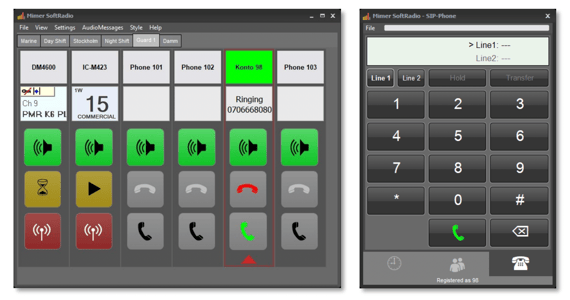
SoftRadio with two radios and four SIP phones - Number entry menu


Receiving a phone call

An incoming call generates a ring tone and blinking green on the name bar in SoftRadio. Answer the call by pushing the key with the green handset symbol.

If you do not want to take the call, you can reject it by pushing the key with the red handset button.

After the conversation is finished, end the call by pushing the key with the red handset.

You do not need to open the SIP-Panel to answer or reject a call.

Making a phone call

Open the SIP-Panel if it is not already open.

There are different ways you can make a call:

8

Phone tab.

  • Manually enter a number by pressing the number buttons on the panel or entering the numbers from your PC keyboard. When the correct number is entered, press the button with the green handset, or press the enter key on your keyboard.

  • You can also use the green handset on the SoftRadio device panel.

Contacts Tab.

  • Double-click an entry in your contacts list to call the contact using the defined default number. The default number is set for each contact in the contacts list.

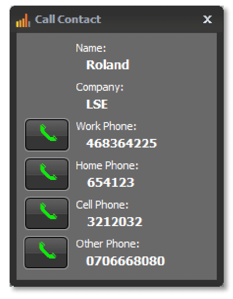
  • Press the ! symbol at an entry in your contacts list to open the Contact Card of the entry. Then press the green handset button next to the preferred number.

Contact Card


History Tab.

  • Double-click an entry in the call log (history) list.

9

Muting the microphone in a call

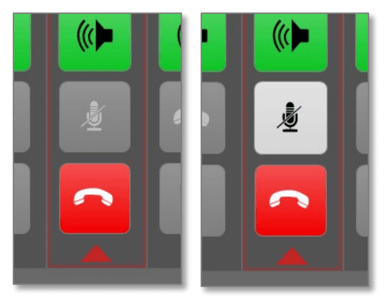
While in a call, you can mute the microphone by pushing the crossed microphone symbol. The key will light up to show that muting is active. Push again to connect the microphone.

In systems with several connected SIP phones this can be helpful when you have one call and need to answer a second call.

Placing a call on hold

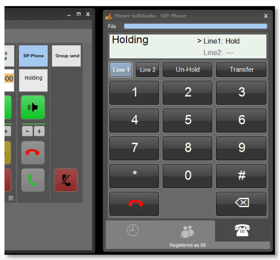
While in a call you might need to pause the call or need to hand it over to another person. By pressing the “Hold” button your call is put on hold.

You can then make a transfer of the call as described below.

Or you can then select the other line and answer another incoming call or make a new outgoing call.

To cancel the hold state press the button marked “Un-Hold”

Call on hold, marked with light blue colour

10

Answering a radio call, when you are using the phone

You don´t need to put the call on hold or mute the microphone, to quickly answer a radio call.

When you push PTT on a radio device panel, your microphone audio will move from the phone call, to the radio. When releasing the PTT, it moves back to the phone call.

Transferring a call

You can transfer a call like this:

  1. First put the current call on hold by pressing “Hold”.

  2. Then manually enter the number of the other person who shall receive the call.

  3. Finally press the “Transfer” button.

  4. You are now immediately disconnected from the call and the exchange takes care of calling the other person instead.

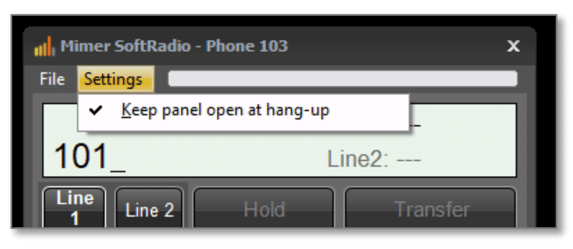
Keeping the phone panel open

There is a selection if you would like the phone panel to be open after a call, or to close automatic. You find it under settings on the panel.


11

The Contact list

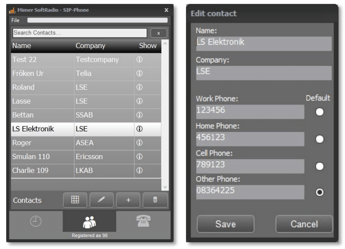
Each entry in the contacts list holds information about name and company for the contact and it can hold several phone numbers. One of the numbers is marked as a default (favourite) number. That number will be used when making a call by double-clicking on the entry in the contacts list.

Contact menu and edit contact menu


  • To add a contact, simply press the plus sign button.

  • To update a contact, select the contact and then press the pen button.

  • To delete a contact, select the contact and then press the trash can button.

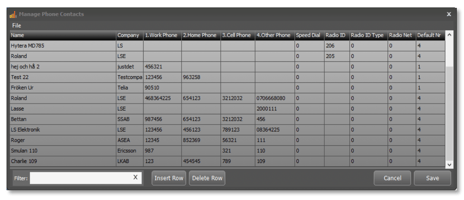
Manage all contacts

You may also edit your whole contact list. It is brought forward by clicking the key with the “squares” on.

Here you can easily insert and delete rows and update the information.

Don´t forget the column to the right “Default Nr”, this sets which of the phone numbers that are to be used when double clicking a contact.

12

Under “File” there are options to import and export the list. This will be done in Excel-format, so that you can make updates easier in Excel or maybe export a list to another operator PC.

The list is shared with the option for RadioCalls, so there are also columns for RadioID etc. 

Default number

The number marked as default will be the number called when double clicking on a contact in the list.

The History list

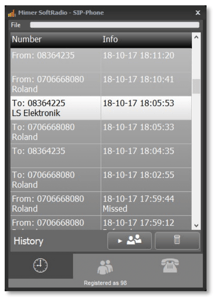
The history list will show both incoming and outgoing phone calls from your dispatcher. It will hold up to 100 entries.

SIP History window


You can redial by double-clicking on an entry in the call log.

To make a new contact in the contacts list based on an entry in the history list, select the entry and then press the button with an arrow pointing on a list. Then add the name and company info in the contact’s dialogue.

To delete an entry in the history list, select the entry and then press the trash can button.


13

Optional functions

Cross-Patching of calls

With the option Mimer CrossPatch installed, phone calls can be manually patched together with radio calls. Note that the patch will be disconnected when the phone call is ended.

Recording of calls

With the server Mimer VoiceLog installed in your Mimer SoftRadio system all audio is recorded for both radio calls and phone calls. All recordings are marked with a date and time stamp. 

Technical

Used ports

The Mimer SIP Phone uses the standard port 5060 for the SIP connection. Then RTP-ports are enumerated starting from 22000 with a maximum of 24000 allowed.

However, in practice only the very few first RTP ports in the range are likely to ever be used.

Technical problems

On the web pages FAQ there is a section for SIP setup.

14
 
Mimer SoftRadio

Proudly made in Sweden

Connect Your Radios.
Anywhere. Over Any Network


Contact

LS Electronics AB

www.lse.se/contact-sales

info@lse.se