<img src="https://www.inventive-7-intuition.com/807131.png" style="display:none;">
 
Company Logo
image-png-Mar-12-2026-10-43-15-9533-AM


Mimer Option

Technical description and set-up instructions — Tetra - DMR - DTMF - 5-tone Systems

Art n:o
3046
Revision
-
Release date
Jan 03, 2020

This guide will help with the use and setup of your Mimer option 3046 “RadioCalls”, presenting and logging incoming Tetra, DMR and 5-tone calls as well as sending text messages and private calls.
Please also refer to the web page www.lse.se/radiocalls

General

Mimer RadioCalls is a new option (from 2019) combining the earlier “Mimer Local CallLog” and “Mimer Selective calls with text send”. Mimer RadioCalls is used on Mimer SoftRadio v4 and onwards.

Basic functionality:

  • Presents incoming calls with a time stamp in a list form

  • Saves the calls in a log file on the operator PC

  • Direct Private call and call-back to any radio

  • Holds a contact list with your favourite radio users

  • Sends text messages

  • Holds predefined text templates 

This will work on:

  • Tetra-systems

  • DMR-systems

  • 5-tone system (CCIR, ZWEI, EEA etc)

  • DTMF transmission

  • MPT-systems 

Text functions available depending on system type.

For use of DSC calls in Marine VHF systems, there is a separate option called Mimer Marine Calls.

3

Installation

Software needs

The dispatch PC shall have Mimer SoftRadio v4 and the RadioCalls option installed.

Hardware needs

Tetra and DMR radios are connected through the standard Network Interface for each type of radio. No extra hardware needed.

For decoding of 5-tone codes the Network Interface connected to the radio also needs to have a tone decoder fitted inside it (Mimer 2864). Any analogue radio type can be used.

Transmission of 5-tone and DTMF can be done on any analogue radio type without extra equipment. DTMF transmission is only available using the large Network Interfaces (article 3009), not with the LE-interfaces (article 3130).

Starting the software

Opening the RadioCalls window

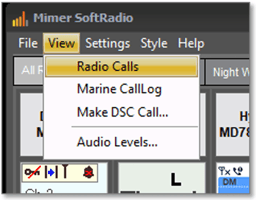
The Radio Calls window is opened, by ticking the selection “RadioCalls” on the “View” menu in SoftRadio.

When selected it will forwards be opened automatically every time SoftRadio is started. 

Selection of RadioCalls 


4

Menus

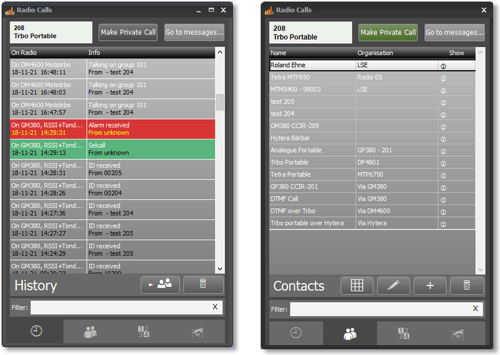
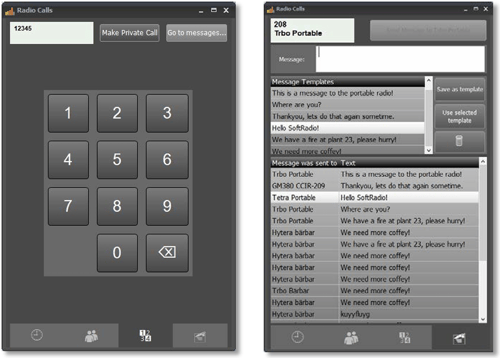
RadioCalls is divided in four menu pages:

  • History

  • Contacts

  • Call page

  • Text messages 

The four menu pages 


5

History page

Receiving calls

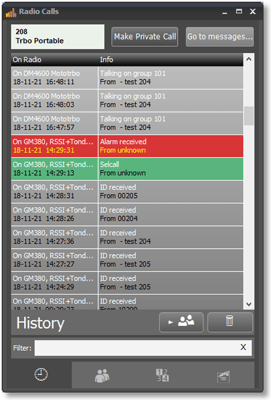
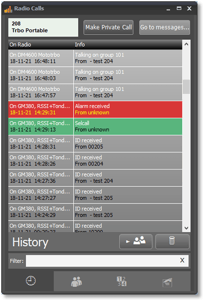
The History page will show all incoming calls that have been received by the Network Interface at the radio(s).

The log message will describe the date and time, and the radio it was received on, the type of call and if available, the ID of the caller.

The History page will show the incoming calls with the latest on top. When the list is full, at about 300 posts, the oldest will be deleted. All calls are also stored in a log file. 

The History page will handle all radios connected in the SoftRadio system. To show on what radio the call came, this is presented in the column On Radio. Please note that if you have more than one radio in the SoftRadio system listening to the same call, they will both be presented in the list.

The On Radio column will also present time and date.

The Info column shows the number of the calling party and what type of message that was received. 

Message types

Messages can be sent in different formats depending on the urgency and who or whom it is sent to. The History page reflects this in different background colours.

The CallLog will show:

  • Private calls are shown in green

  • Emergency (Alarm) messages in red

  • All other types in black 

 When selecting a call to do a call back, the background of the post turns light grey. 


6

Call addressing

In Tetra and in DMR systems it is the ID number of the fixed radio that is used for Private Calls and Emergency Calls. Therefor all operators that share one or more radios will get the same calls. 

In 5-tone systems the ID number is set for each operator, see below. Therefor operators that share one or more radios can have different ID numbers. Or if they prefer, they can have the same number as a group call. 

Call back

You can make a call back to a radio just by selecting the post in the History list and push “Make Private Call”.

Saving a contact

If a call is received and registered from a radio that you don´t have in your contact list. You can push the key for saving the contact. Read more on saving contacts below.

Deleting a post

Any post can be deleted from the History list by selecting it and pushing the Trash can button. 

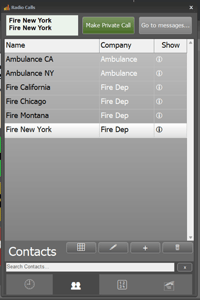
Contacts Page

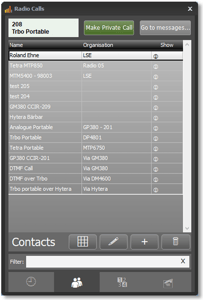
Here you have a list of your favorite radio users. 

Entries in the list

You can save both the name and the organization that the contact belongs to.

7

Add a contact

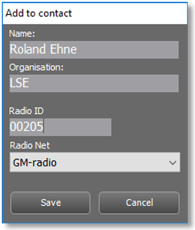
Pushing the Plus button will bring forward a menu where you can enter:

  • Contact name
  • Contact organization
  • Radio ID-number (selcall, ISSI)
  • Selected Radio Net to be used

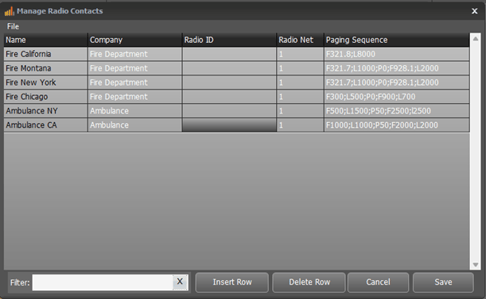
Manage Radio Contacts

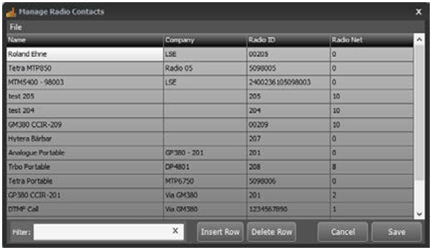
Pushing the “Grid”-button brings forward a window were all contacts can be edited. There are also functions for export and import of contact lists. Useful if several dispatchers shall share a list. 

The exported list is stored in Excel format and can be edited in a normal Excel program. 

Radio net

Leaving this setting at “Selected Radio” will direct the call over the radio defined by the red arrow in SoftRadio.

Alternatively select a Radio net defined in the settings described further down. This setting will force the call to be made over a specific radio rather than the one the red arrow points at. 


8

Using colour codes

When editing in the “Grid”, you can assign a colour to each of your contacts. The colour will then show up in the history list of incoming calls to make it easier to identify a caller. 

This is also useful when working with for example status messages. You can have different colours for different status. 
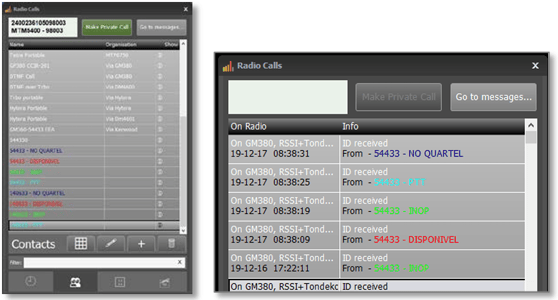
Coloured contacts in the contact list and in the history list 

Update a contact

A contact already in the list can be updated by pushing the Pen button.

Delete a contact

The Trash can button will delete the selected contact.

Check the information on a contact

At each contact there is a small “i” icon that will bring forward a read only list of the contact information.

Filtering contacts

You can search for contacts by writing in the “Filter”. The contacts are searchable by any part in the name or organisation.

Support of private calls and text messages

Please note that, as can be expected, if you have different radio types in your system where some do not support private calls and/or messaging, those functions will only work on the radios that do support them. Nothing will happen if you try to make a call on a radio that does not support that call type.

The exception is 5-tone calls and DTMF calls that can be made on any analogue radio since the tones are created in the operator PC (5-tone) and the Network Interface (DTMF), and sent as audio, they are not created in the radio itself. 

 

9

Call page

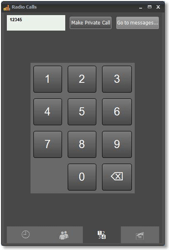
The Call page is used for entering radio numbers freely for private calls, without saving them in the contact list. When the full number is entered just push “Make Private Call”.

You have a keypad for entering a radio number with mouse or touch screen. You can also use the computer keyboards number pad. 

The call will be sent on the selected radio in SoftRadio. This is the radio where the small red arrow points.

If there is a match for the number in the contact list, the display will show the contact name.

You can also enter a number here and then select to go to the message page to send a text message to the selected radio. 

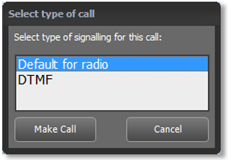
Select type of call

If the radio you are trying to send the call on is defined in several RadioNet´s, with different call types, you will get a popup window asking what type of signaling to use for the call. 


10

Text message page

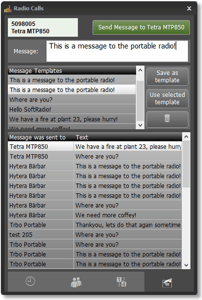
On the text message page you can both enter a free text message and use predefined templates.

You need to select the radio that you would like to send the message to, beforehand, on one of the other pages. 

Sending free text messages

Enter the text message and press “Send message to…”

Sending templet text messages

Select the message by double clicking it or pushing “Use selected templet” and press “Send message to…”

Saving a new templet

After entering a text message you can choose to save it as a template by simply pushing “Save as template”.

Deleting a templet

The trash can button will delete a selected message from the template list.

Message history

There is a list showing the latest sent messages and to what radio it was sent. 

11

Log files of incoming calls

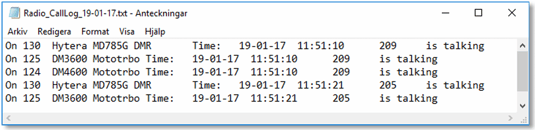
All incoming calls are stored in files on the operators PC. The files are standard text files divided with one new file for each new day.

They are found under: C:\Users\Public\Documents\Mimer\Logfiles 

Example of Log file  

12

Settings to make before use

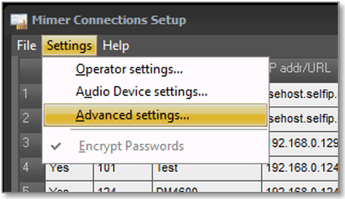
The settings are located under Settings/Advanced settings in “Mimer Connection Setup”.

Call ID settings, 5-tone systems

This is where you set up what tone messages a dispatcher shall react to. 

When a tone sequence is detected by the tone decoder in the Network Interface and sent to the Mimer SoftRadio client, it will be checked against the definitions for that radio ID. It does not need to be five tone´s in the sequence. Any number of tones will work.

If a match is found, a call or alarm indication is triggered (sound and light) and Mimer waits for a second sequence within 0,5s. If this is received it will be interpreted as the ID of the calling party.

A log message will be written describing the date and time, and the radio it was received on, the type of call and if available, the ID of the caller.

If a non-matching ID is received without a second ID, it will be written as an ID from that party, it will not be announced as a call. This is used in systems with ANI or PTT-ID.

If a non-matching ID is received together with a second ID, it will be interpreted as a call to another radio and will be rejected.

13

Setting up the ID´s

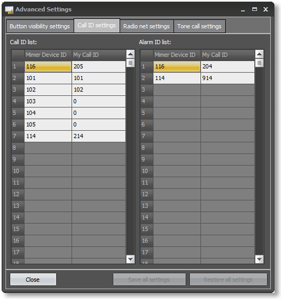
The call ID´s are set up on the Call ID settings tab. This needs to be done at each operator PC. There are two columns, one for individual calls and one for alarm calls (emergency). 

Fill in the Mimer Device ID of the fixed radio that will receive the selcall and then the tone sequence that shall be decoded.

Repeat this step for each fixed radio that can receive selcalls.

Each fixed radio can have several selcalls.

Each operator can have different individual selcall numbers and also have different selcalls on different radios.

When you are done press save and also restart the SoftRadio application. 

Setting up an auto acknowledge

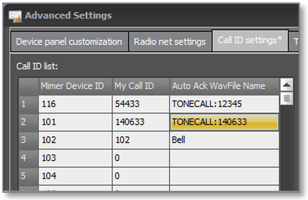
If it is preferred that a call to an operator shall be followed by an auto acknowledgement to the caller, this can be set up for each call. 

Beside the Call ID there is a column where the file name of an audio file (voice or tone message) can be entered. The file shall be placed in the folder: C:\Users\Public\Documents\Mimer\StandardAudioMessages

Alternatively you can enter the text: “TONECALL:” followed by a set of numbers. This will send a tone call back in the format set up for the radio that it refers to. 


14

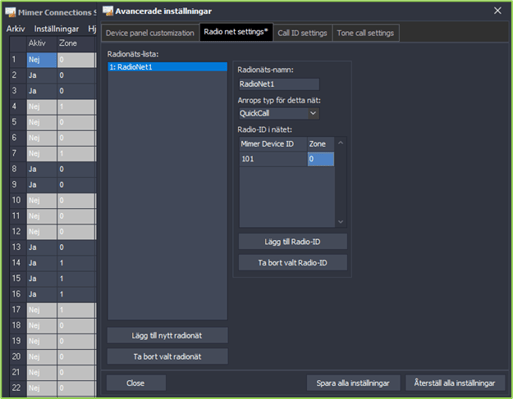
Radio net settings

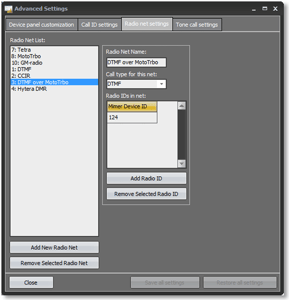
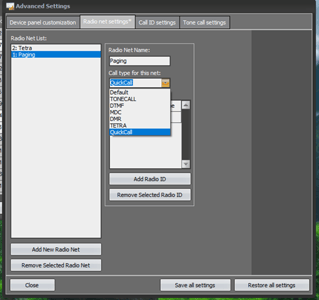
Defining a Net ID for a radio or a group of radios will make it possible to direct calls, selected in RadioCalls, to different radios in your Mimer system. 

For example, your system has both analogue radios using 5-tone or DTMF and also Tetra radios. By specifying the NET-ID for each call, the right radio will be used for the call transmission.

The alternative to this is that the user always sets the red arrow to point to the right radio before he makes the call. 

Defining the Net ID

First define the number of radio nets that you need, to the left. Then select them one at a time and give them a name and add one or more radios to each radio net.

When setting up a new contact you can select to use any of the Radio nets as the default path for calls.

Defining several radios to one Net ID

Each Net ID can have several radios defined. This is useful in dispatcher centrals with many radios that operate on the same radio network and it does not matter which radio is used for the call. For example in MPT or other trunked radio networks.

When making a call and the red arrow points to a radio with the right Net ID, it will not be moved, and that radio will be used for the call. If it points to a radio with another Net ID it will be moved to the first matching definition, in the list, as read from the Radio net settings.

Tip: Entering the radios using the same Net ID in different order at each operators Radio net settings list will prevent the operators from always using the same radio for outgoing calls.

15

Tone call settings

5-Tone transmission

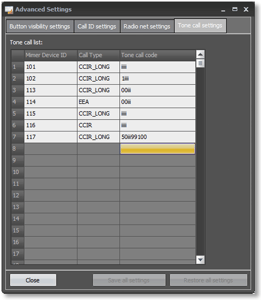
In 5-tone systems you also need to set the behaviour for tone transmission on each radio that the operator has access to. 

In this example Radio 101 will send the 5 digits that are in the list or entered via the keypad. If less than 5 digits are entered, leading zeroes will be added. So entering 12345 will transmit 12345, but entering 12 will transmit 00012. 

On radio 102 above it is expected that the operator enters 4 digits and the call will have a 1 added. Entering 1234 will transmit 11234.

On radio 117 above entering 123 will send the sequence: 5012399100. 

DTMF tone transmission

DTMF transmission have some extra selections apart from the standard 0 9, # and *.

Entering a G gives a 1000Hz tone and entering H gives a warble sounding tone. They are both 3sec long.

You can also place a pause between two tones by entering X for 0,5sec or Y for 1sec pause. The X can be exchanged for “:” and the Y can be exchanged with “-“ or “SPACE”.

If a longer tone or pause is needed you can stack them after one another.

Please note that the system has no DTMF decoder only encoder.

16
 
Mimer SoftRadio

Proudly made in Sweden

Connect Your Radios.
Anywhere. Over Any Network


Contact

LS Electronics AB

www.lse.se/contact-sales

info@lse.se