<img src="https://www.inventive-7-intuition.com/807131.png" style="display:none;">
 
Company Logo
image-png-Mar-11-2026-09-41-19-7344-AM


Mimer SoftLine

Technical description and set-up instructions

Art n:o
-
Revision
O
Release date
Jan 15, 2026

Mimer SoftLine is a special version of the Mimer SoftRadio network interfaces, where connection is point to point without having a PC as a dispatcher. This is for example useful for bridging radio systems together, or cross patching between systems. Certain radios can also be remote controlled using their own control head at the dispatch end, instead of using a PC software as you do with Mimer SoftRadio. Mimer SoftLine is also used in cases where you need to upgrade from old, leased lines to IP connections but still keep the radio equipment at each end. This paper describes the basics and how to set up the system.

Please also refer to the web pages: www.lse.se/softline

And to the pages with cable diagrams and radio setup information: www.lse.se/cables

General

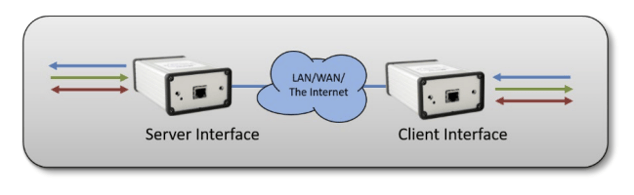
The Mimer SoftLine interfaces basically transfers three types of signals between two points using an IP network connection.

  • Audio input and output.

  • Full duplex RS232 serial data at 1200-19200 baud.

  • Digital I/O. There are two inputs and two outputs that are connected back-to-back. 

This can be used in several ways, both for radio systems and for other purposes. Often the setup is used for bridging radio systems or for cross patching of radio systems. It is also used for eliminating old 2 or 4-wire leased lines and instead use LAN, WAN or the Internet.

Several readymade cable kits are available for different use. 

Audio input and output 

The gain is factory set to 1:1 and the maximum level is set to +2dBm@600 ohm.

Interface type 3009/00, includes line transformers, is factory set to -10dB@600 ohm (typically replacing a land line). Interface type 3009/09 is factory set for microphone and speaker levels (typically connecting two radios back-to-back).

The audio levels in/out of the interface can be adjusted with the setup software. This is described further down in this manual.

The default setting is that Audio data starts when the internal AF detector senses an AF signal at the input. The threshold for this can be set using the Mimer Network Interface Setup program. In some setups the audio line is full duplex. 

Asynchronous RS232 

The Baud rate for this link can be set to from 1200baud to 19200baud using the Mimer Network Interface Setup program. 

There is an internal buffer in the interface that collects data from the input and transfers it to the other end within 50ms if the data stream stops. 

Digital I/O 

There are two inputs and two outputs that are connected back-to-back.

They can be used for several remote-control purposes.

When connecting two radios back-to-back over a SoftLine the squelch (or other logic receive indication) on one radio can through the I/O´s trigger the PTT on the other radio and vice versa. As an alternative an audio detect (vox) in the interface at the receiver can be used for triggering PTT on the other radio.

Information about Pin-out and the use of the I/O´s can be found on the web pages. In special setups the information will be sent with the equipment. 

3

Examples of SoftLine use

Below are some examples of how to use SoftLine in your radio systems. 

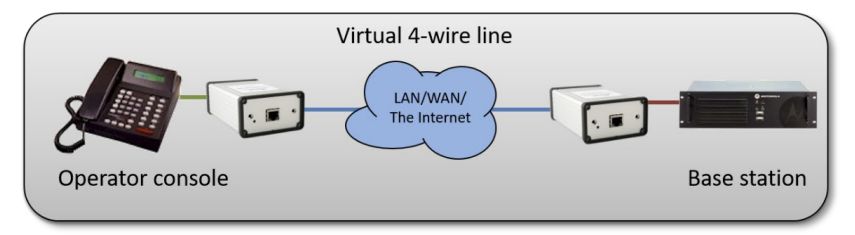
Using IP instead of an old analogue leased line connection between operator and base station. This is also useful if you cannot use copper connections and need to convert the connections to fibre. 

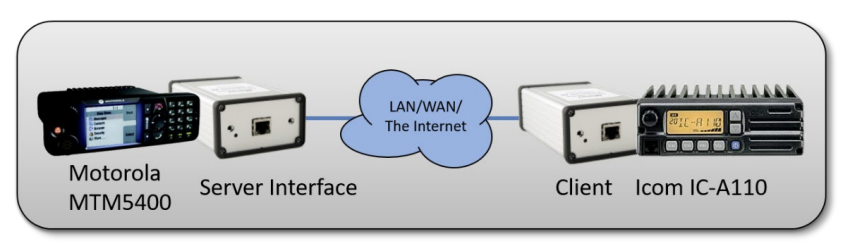
Connection of two radios as a cross patch. The radios can be at the same location or at totally different locations. In this case a Tetra radio and an Airband radio. 
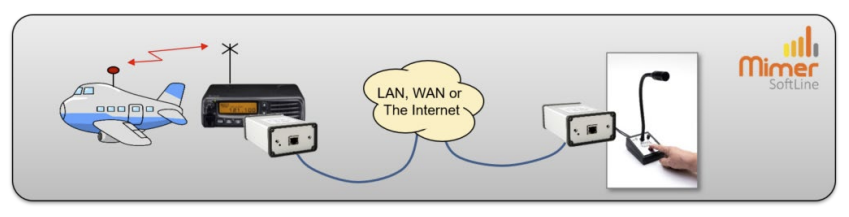
Remote operation of a radio using only a microphone with built in speaker. For operators that do not want to have a PC as the operator interface. 
 

Setting up the radios

In many cases there are also settings needed in the radio that is connected to the network interface. Instructions for this can be found in the guides sorted by the cable kit number. (Cable kit between network interface and radio unit). These are found here: www.lse.se/cables.

4

Setting up the interfaces

Before the interfaces are installed in the customers IP network, they need to be configured using the program “Mimer Network Interface Setup”.

This configuration involves setting the IP-addresses that are going to be used. 

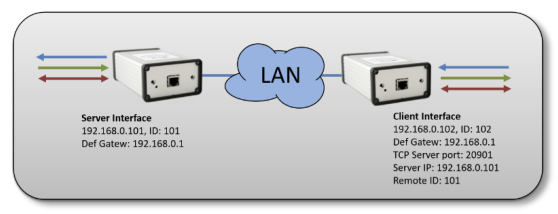
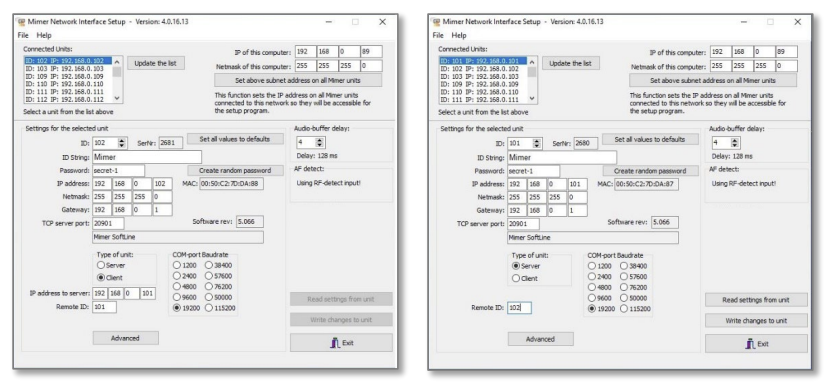
Typical settings in the Server and Client interfaces. 

Connect your PC 

You need to connect your PC in the same local LAN as the network interface. Then you can do the setup using the program “Mimer Interface Setup”.

If you don´t see the interface listed in the “Connected Units” list, then check:

  • That your PC´s IP port has an address in the same subnet as the interface.

  • That your Windows firewall is not blocking the connection.

Server – Client

One of the interfaces shall be set as a server and the other as a client. The IP address of the server needs to be known. The client can have any IP address, although it needs to be set to an address that fits in the network where it is connected.

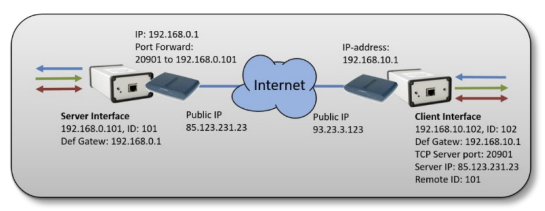
Typically, one interface (the client) is placed in a local network and accesses the other interface through a router. In this case the address of the router needs to be set in the Default Gateway parameter of the client.

The other interface may be placed at a remote site and is usually connected through a router that interfaces to the internet connection. This remote router needs to be configured to forward IP data on a specific IP port to the local IP address of that SoftLine interface. That interface shall be configured as a server and set to listen to the same port that is forwarded. Also, the address of the router needs to be set in the Default Gateway parameter of the interface.

5

Example of setting in a local LAN. (Also, the default setting when delivered) 

Example of settings for a Mimer SoftLine connection over internet via routers in both ends. 

Audio Buffer Delay 

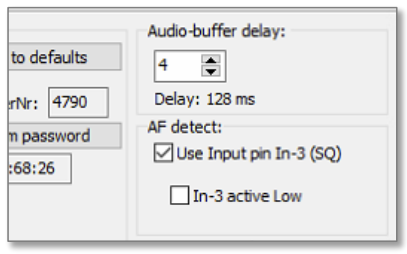
Another parameter that may need an adjustment is the buffer delay. For use in a local network or over a microwave link it can be set to a low value like 2-4. For a connection over internet that may show large time jitters the buffering delay may need to be set as high as 16 to achieve a stable audio transfer. The buffer delay need only be set on the client. The server will use the same delay setting as the client after the connection is established. 

Audio levels 

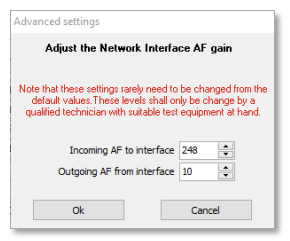
Behind the “Advanced” key in the software are settings for audio in/out of the interface. These are normally factory set and seldom needs adjustment. If you do need to change the settings, first make a note of the original values, so that you can revert to them if needed. 


6

AF Detect 

In for example cross patch solutions the AF Detect on one radio is used for triggering the PTT on the other radio. On radios with a logical output saying “I am receiving” similar to the Squelch output or PL-detect on old analogue radios, this is mostly used. On older versions it was factory set if the AF detect will be done through a logical I/O from the radio, or if the interface shall measure the AF-level (VOX function). Later versions (from 4.1.0.9) have a selection for this. And also, a selection if the logic output from the radio unit will be active high or low. 

Use Input pin In-3 (SQ) 

Checking this box means that the radios squelch output is used. In some radios called PL-detect or Talk Group active. Unchecking means that the input is disregarded, and an AF-level detect is used (VOX function).

In-3 active Low 

Checked box means the radios output shall be active low. Unchecked box means the radios output shall be active high. 

Messages at setup

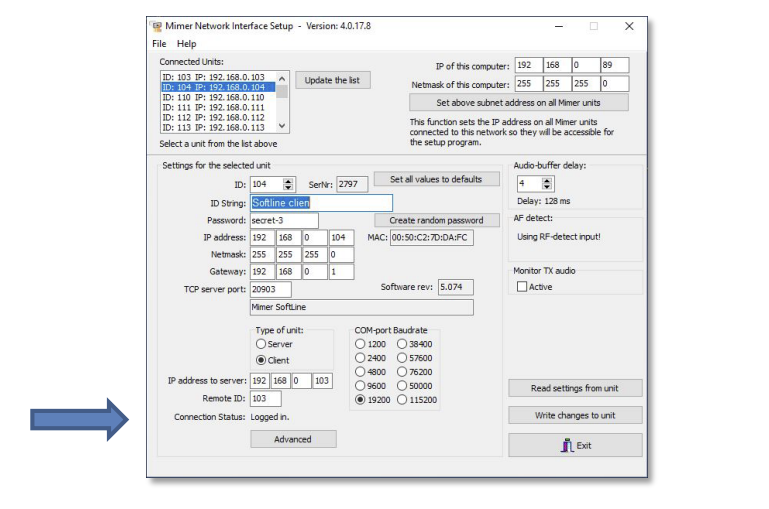
There are some helpful messages that can be read during setup, when using the Interface Setup software. Connect a PC to the LAN where you have the interface and check the message line marked Connection Status. These messages can be found on version 4.0.17.8 and forward.

Logged in – The two interfaces are connected.

Not Connected – The two interfaces are not connected.

Wrong Password – The IP path is setup, but the password in the client interface setup was not accepted by the server interface. 


7

Special versions of Mimer SoftLine 

SoftLine has been tailor made to specifically connect some radios to their standard control heads over long distances.

Usually only a distance of up to 10 meters is possible with the standard equipment from the manufacturers.

With SoftLine you can have the control head on the other side of the world. 

Mimer SoftLine Motorola analogue 

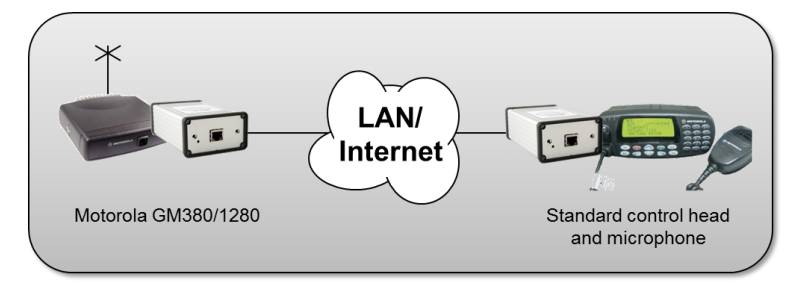
Using a specially designed version of the Mimer SoftLine Network Interface, a remote control can be set up for a Motorola GM380 or GM1280 radio and its standard control head.

The radio and the control head can be separated by a standard CAT5 cable of up to 150m or you can use a standard LAN to expand the range even further. You can also use the Internet for longer expansions.

With SoftLine Motorola you can have more than one control head attached to one radio and even mix control heads with the software solution Mimer SoftRadio.

At the control head side, the standard speaker and microphone can be used.

The Mimer Network Interface has a built-in speaker amplifier to get the audio level right. 

Remote control of Motorola radio with standard control head. 

Setup

Please note that the radio and the control head shall be equipped as if they were remote controlled with a cable kit. The kit for this is: RLN4780.

No special programming is needed in the radio.

The Control head and the network interface at that end will need a power supply of 12VDC and at least 2A.

8

Mimer SoftLine Sepura 

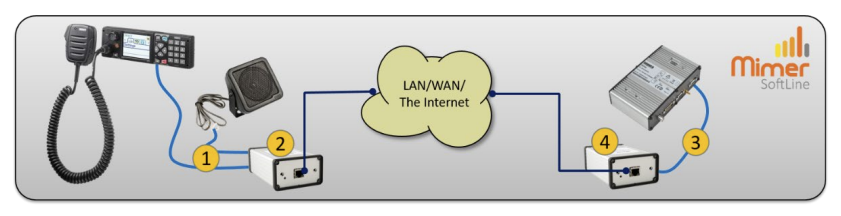
By a specially designed version of the Mimer SoftLine Network Interface, a remote control can be set up for the Sepura SRG3500/3900 Tetra terminal and its standard control head.

The radio and the control head can be separated by a standard CAT5 cable of up to 150m or you can use a standard LAN to expand the range even further. You can also use the Internet for longer expansions.

At the control head side, the standard speaker and microphone can be used.

The Mimer Network Interface has a built-in speaker amplifier to get the audio level right. 

Remote control of Sepura Tetra radio with standard control head.

  • Cable kit 2859/07

  • Network Interface 3009/13

  • Cable kit 3015 (Sepura SRG3900) With SCG22 the adapter 300-02007 from Sepura is also needed

  • Network Interface 3009/14 

Setup 

The Control head and the network interface at that end will need a power supply of 12VDC and at least 2A. No special programming is usually needed in the radio. Both ports on the radio will work. A standard control head can be connected in parallel for local use. (both functions depend also on radio programming) 

Mimer SoftLine Icom Marine 

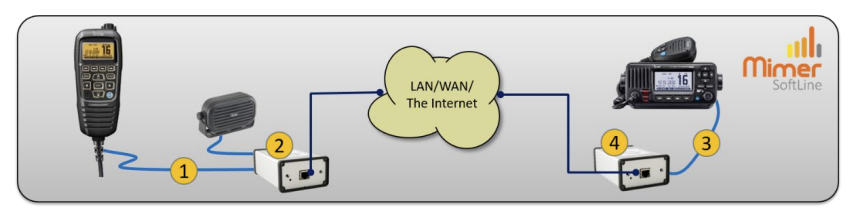
By a specially designed version of the Mimer SoftLine Network Interface, a remote control can be set up for the Icom Marine radios IC-M423, M424, M400BB, M410BB, M506 and M510, M510EVO (and -g and -e-versions) with their standard Command microphone.

The radio and the Command microphone can be separated by a standard CAT5 cable of up to 150m or you can use a standard LAN to expand the range even further. You can also use the Internet for longer expansions. An extra separate loudspeaker can be connected at the Command microphone side if needed. When using the Icom marine radio the standard radio front panel and microphone can be used in parallel with the remote control (not applicable on M400BB).

9

Remote control of Icom Marine radio with Command microphone.

  • Cable kit 3189/02

  • Network Interface 3009/40

  • Cable kit 3126/02

  • Network Interface 3009/41 

Setup 

Before setting up the remote control, connect the Command microphone directly to the radio and let them “shake hands” so that they surely have the same firmware versions and work together. The Command microphone and the network interface at that end will need a power supply of 12VDC and at least 2A. No special programming is needed in the radio.

Note that power to the Command Microphone is not active unless there is a functioning connection between the interfaces over the IP network. 

Mimer SoftLine Motorola MTM5500 

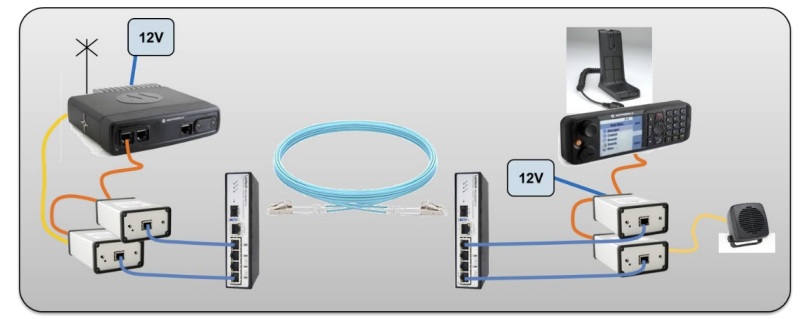
By the Mimer SoftLine Network Interfaces and a specially designed version of interfaces, a remote control can be set up for the Motorola MTM5500 with its standard Control head and microphone. The radio and the Control Head can be separated by standard CAT5 cables of up to 150m or you can use a standard LAN-switch to expand the range even further. Internet connection is not possible. The remote setup uses two connections. One is the standard Mimer SoftLine connection. This can be set to be used on any LAN or even the Internet. The other connection however is “dictated” by Motorola. The IP-addresses can´t be changed and therefor it will only work in a direct setup in your own LAN. The solution is delivered with modems to be used over a fibre connection for customers that do not want copper wire connection. If the MTM5500 is set up for use with two control panels, the standard radio front panel and microphone can be used in parallel with the remote control. 

Remote control of Motorola MTM5500 over fibre.

10

Setup 

The Remote-control head and the network interfaces at that end will need a power supply of 12VDC and at least 2A. 


11
 
Mimer SoftRadio

Proudly made in Sweden

Connect Your Radios.
Anywhere. Over Any Network


Contact

LS Electronics AB

www.lse.se/contact-sales

info@lse.se