<img src="https://www.inventive-7-intuition.com/807131.png" style="display:none;">
 
Company Logo
image-png-Mar-12-2026-10-21-52-4997-AM


Mimer RadioServer Mk3

Technical description and set-up instructions

Art n:o
2860/03 & 2860/05
Revision
F
Release date
Aug 31, 2023

A Mimer SoftRadio system can be configured in many ways. This paper describes the basic use of a Mimer RadioServer and how to set it up. There are two versions of the Mimer RadioServer; standard and satellite version. Both of these can be delivered ready to run in the standard box, or they can be delivered as a Virtual Service software package. There is a separate setup manual for the Virtual version of the RadioServer. There is also a description of setups when using both a NetworkRepeater and a RadioServer. Please also refer to the standard setup instructions for SoftRadio and to the information provided on the web pages. www.lse.se 


General

Mimer RadioServer is a component in the Mimer family of products for network operated 2-way radios.

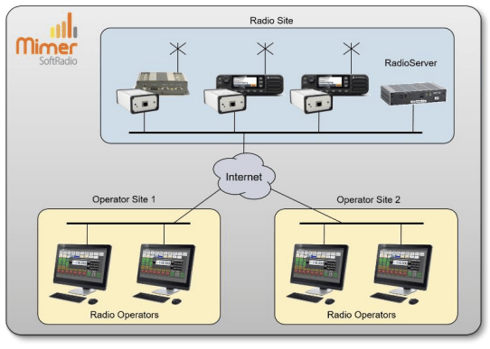
The RadioServer is used to allow many operators to remotely connect to one or more Mimer radios at a single site via TCP-connections. This can be used to allow access from users at different locations to radio resources at a single site, like a remote radio site or a command centre with local radios.

A standard Mimer Network interface allows only one user to connect remotely via TCP. If another user tries to connect he will get the alternating message “Trying to connect”/”Not connected” because there is no free TCP server socket to connect to 


Typical setup where a RadioServer is needed, with three radios offshore and two sites with remote operators. 


3

Mimer Radio Server solves this situation by allowing many simultaneous operator connections for each radio attached to the server. The RadioServer can handle up to 128 locally placed radios and up to 128 operators, however a total of max 256 simultaneous connections are allowed.

This gives the following setup possibilities:

  • 2 radios x 128 operators

  • 4 radios x 64 operators

  • 8 radios x 32 operators

  • 16 radios x 16 operators

  • 32 radios x 8 operators

  • 64 radios x 4 operators

  • 128 radios x 2 operators

The RadioServer has two Ethernet connections. This means it can serve as a router to the Internet connection. By default, the local network connection has a static IP address and the WAN connection uses dynamic IP address assignment, but this can be changed if needed. The RadioServer can also be used in an existing Local Area Network (LAN) which has a router towards the Internet. In this case only the Local network connection on the RadioServer needs to be used. 


4

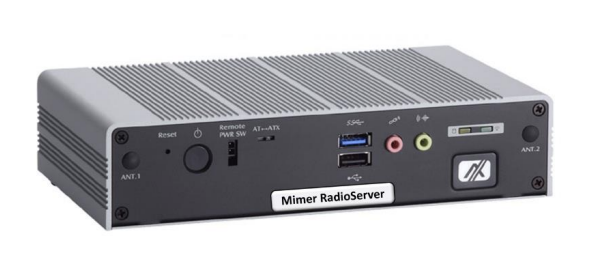
The RadioServer

The Radio Server is basically a computer that runs a Debian based Linux operating system. It hosts an Http-server so that all settings can be done from a standard web browser. The Radio Server also has a ssh server enabling access to the operating system files via ssh, although this shall normally not be required.

Settings in the RadioServer

All settings are made using a standard web browser. After logging on to the web-interface of the server you can change what radios to connect to, the IP-settings, password etc.

Connections

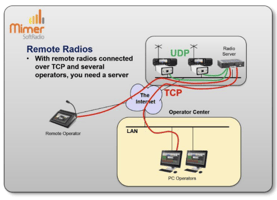
The radios that shall be in the same LAN as the RadioServer communicates with the server using UDP datagrams. The operators that connect through the Internet connects with TCP. RadioServers working in satellite mode do not use TCP and are described further down in this manual. 

The RadioServer links local radios to remote operators.


5

Connecting to the RadioServer

Connect your PC

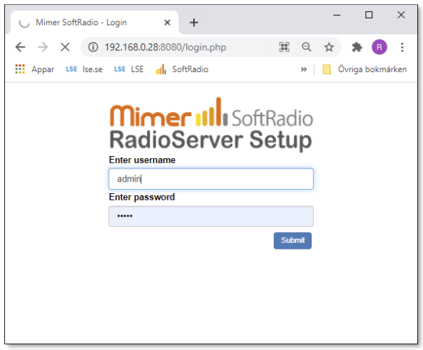
Connect your PC to the RadioServer using the LAN port marked Eth0. Use your favourite web browser and enter 192.168.0.28:8080.

192.168.0.28 is the default IP address that the RadioServer is delivered with. This may be changed during the setup. If so, please don´t forget to make a note of your changes, it might otherwise be hard to reconnect to the RadioServer.

Login

On the first page, log on with the user name “admin” and the password delivered with the RadioServer.

The password may be changed during the setup. If so, please don´t forget to make a note of your changes, it might otherwise be hard to reconnect to the RadioServer. 

RadioServer – Login page


6

Setting up connections to the devices

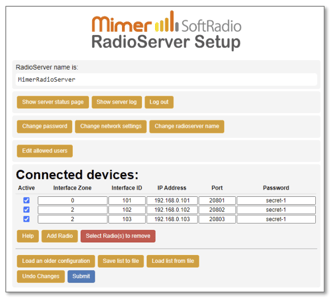
The first page is the list of devices that shall be connected to the RadioServer. This can be radios, phones, intercoms and other types of devices in the Mimer SoftRadio system.

The devices will communicate with the server via UDP in the local LAN.

First click the button “Add Radio” so the number of lines corresponds with the number of devices that you would like to connect. 

RadioServer – Setup page 

Interface Zone

The Zone function is used in system with over 240 nodes. See separate manual. (Setting added from version 2.44)

Leave the Zone number at 0 for all system not using the Zone function! 

Interface ID

This is the ID number used in the Mimer SoftRadio system for the device. In Mimer SoftRadio every device and every operator need to have a unique ID number between 10-240. It is common practice for the SoftRadio clients to have numbers from 10-99 and all other devices numbers from 100-240.

The ID number of a device is determined by the setting in the Network Interface. 

IP Address

This is the IP address used in the local LAN connecting the device to the RadioServer.

The IP Address is determined by the setting in the Network Interface.

Instead of an IP address a URL can be used if you have an IP setup that allows local URL’s. 


7

Port

The port number is the TCP port used on the WAN side of the RadioServer to connect SoftRadio clients to the correct device. This port number will be used in the connection’s setup of the Mimer SoftRadio client.

If you have a router on the WAN side, the corresponding port will need a port forward definition pointing at the IP address of the RadioServer.

(The TCP Port number in the Network Interface is not used since the interface is connected locally using UDP)

Password

This is the password that will be entered in the SoftRadio client setup. (The password in the Network Interface is not used since the interface is connected locally using UDP)

Submit changes

After entering your changes in the list of devices you need to click [Submit] to store them to the RadioServer. A confirmation window will show that the RadioServer has accepted the new settings. If you don´t want to submit the changes, you can just click the [Undo changes] button.

Save and Load from file

The buttons [Save list to file] and [Load list from file] gives you the possibility to have several different settings in files on your PC that you easily can switch between.

Configuration history

The button [Load an older configuration] will present a list of older settings with time and date for setup. Any of these settings can be opened for review by selecting them. They will not be used until the [Submit] button is clicked again 


8

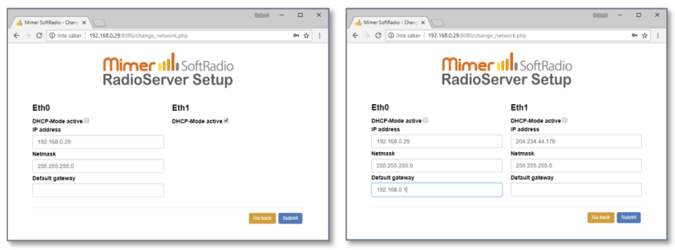
Change network settings

The standard settings delivered with the RadioServer are:

  • Eth0 – Static IP address, used for the local LAN to the devices.

  • Eth1 – Dynamic IP address, used for the WAN/Internet to the SoftRadio clients (might also be delivered as blank) 

RadioServer - IP setup page

After you have done your changes, click the [Submit] button.

Static IP – DHCP-Mode not active

Unticking the box means that you will use a Static IP, and that you define all the settings for the IP address yourself.

IP address

The static IP address of the RadioServer. You can change this to any address that suits your net. If you change the subnet part (often the three first groups) you must remember to also change the Mimer Network Interfaces accordingly.

Netmask

Defines what part of the address that is the subnet address. The standard setting 255.255.255.0 tells that the first three groups are the subnet address. In this case it is 192.168.0. If you only want to change the IP, you normally do not need to change this setting.

Gateway

This is the address of your gateway out of the local subnet, normally the address of the Internet router. This field must usually be cleared if you use DHCP on the other Ethernet interface.


9

Dynamic IP – DHCP-Mode active

Ticking the box means that you will use a Dynamic IP, and the network you connect to have a DHCP-server that can assign an address and all IP settings to a computer that connects to it. The DHCP-server has a range of addresses that are assigned to a client when it sends a request. This is called dynamic address assignment.

Important note regarding Gateways

When using both LAN ports, only the WAN port shall have a gateway assigned (when it is set to DHCP it gets a gateway automatically). Leave the other LAN ports Gateway field blank. 

Other commands

Change password

Pushing the “Change password” button will lead you to this page. 
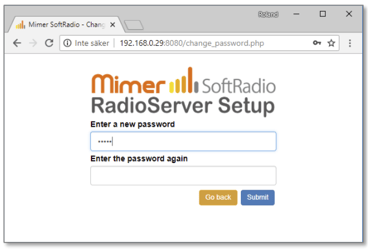
RadioServer – Change password 

If you wish to change your password for the admin account of the RadioServer, just enter the new password in both boxes and push “Submit”. If you change the password, please don´t forget to make a note of your changes, it might otherwise be hard to reconnect to the RadioServer.

Checking RadioServer status

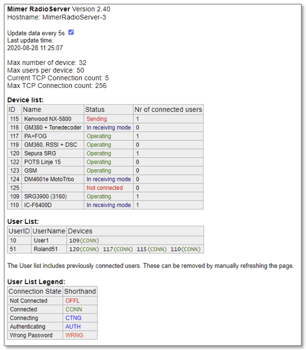
The status of the RadioServer can be checked by accessing it with a web browser. This is a read only page.

Type in the IP of the RadioServer and you will get a list as below. You can access it both over a local LAN and over the Internet*. Choose the Local or WAN IP address of the unit depending on how you access it. There is also a button to get directly to the Status page from the RadioServer Setup window. Just click the button [Show server status page]. First you have some basic facts about the server. Then comes a list of connected devices and their current status, and also how many users that are connected to each device. After that you have a list of the connected users and what devices they have connected to.



10

Web browser check of the RadioServer status

Show the server log

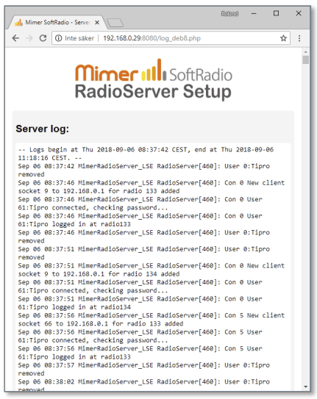
The server has a built-in log function that shows in detail every connection to the server. This can be useful when setting up a system or when fault finding a system. 

RadioServer log window


11

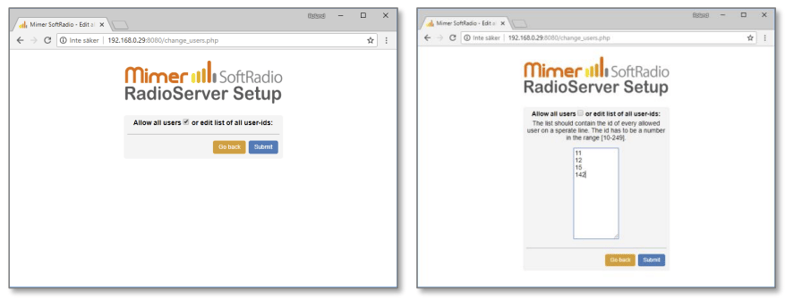
Allowed users

You can restrict which users in the SoftRadio system that are allowed to connect to devices through the RadioServer.

Click the “Edit allowed users” key.

Enter the SoftRadio ID numbers of the operators that shall be allowed access. One per line, in the range 10-249.

Or… Tick the box “Allow all users”, this means that there are no restrictions. 

RadioServer - Allow users menu

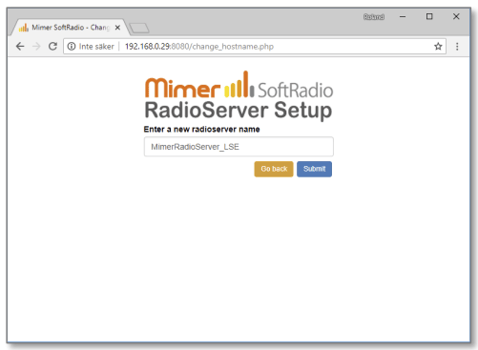
Change Server name

The name of the RadioServer can be changed by entering the “Change server name” menu. 

RadioServer - Change server name menu


12

Setting up the Mimer SoftRadio client

The SoftRadio client (Operator PC) needs to be set up to access the radios through the RadioServer instead of directly to the Network Interfaces.

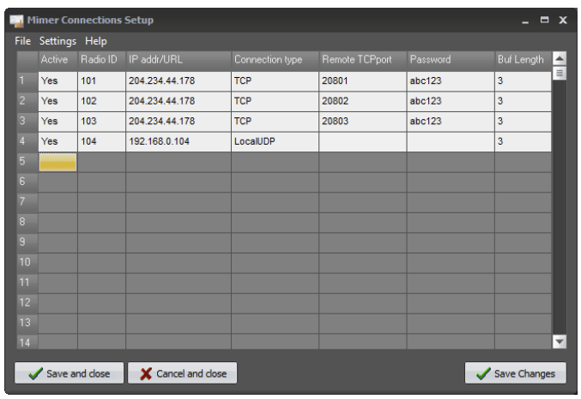
The only difference from connecting directly to a Network Interface using TCP is that the IP address of the RadioServer shall be specified instead of that of the Network Interface. And the TCP Port and the Password of each radio as specified in the RadioServer settings. 

Example of Mimer Connection Setup, in an Operator PC. Three radios are connected via the RadioServer over TCP and one is a local radio.

So, if more than one radio is connected via the server there will be several radios in Mimer Connections Setup that all have the same IP Address = the address to the RadioServer.

In the example above, the user has set up three remote radios with an external IP and one remote radio with a local IP address.

The NetworkInterface or in this case the RadioServer at the radio end of the system always needs to have a static IP address. If none is available a dynDNS service can be used.

Remember that each radio will need to have a unique ID number and a unique remote TCP-port setting as described earlier in this manual. 


13

Using both a RadioServer and a NetworkRepeater

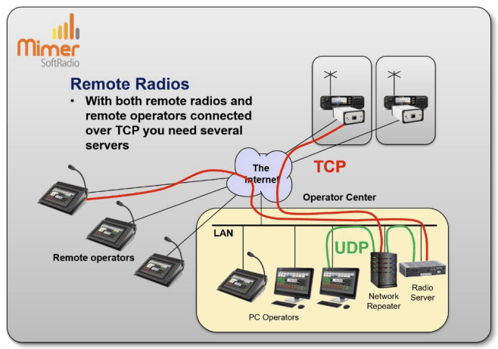
In some system setups you need to use both a RadioServer and a NetworkRepeater. Typically, when you have both radios and operators spread out at different sites connected by the Internet.


  • The NetworkRepeater connects to the radios that are at different sites using TCP over the Internet.

  • The local operators connect to the NetworkRepeater using UDP.

  • The RadioServer also accesses the radios via the Network Repeater using UDP.

  • The external operators then connect to the RadioServer using TCP over the Internet.

Please compare with the drawing earlier in this manual where the radios are at the same site. Then the RadioServer is placed there and no NetworkRepeater is needed.

The use of both servers in the same system is further described in a separate guide “Using both RadioServer and NetworkRepeater” available on the download page https://lse.se/download-resources.


14

Satellite version of the RadioServer

The satellite version of the RadioServer works slightly different from the standard version. The main difference being that it uses UDP Unicast on the WAN connection instead of TCP connections.

An important difference is also that you need to have a NetworkRepeater at the operator end. The operator software cannot handle UDP Unicast.

This setup will handle the long latency and the jitter that satellite links have, much better than the standard setup.

Many satellite links have a built-in function to make TCP connections “better” although there is a long delay in the actual connection. These are good for standard data transfers (Internet surfing etc.), and may work well enough for not encrypted connections. However, they are not so good at audio data connections (that are time critical) and will not work at all for encrypted connections. Therefor the Satellite version uses UDP Unicast instead of TCP.

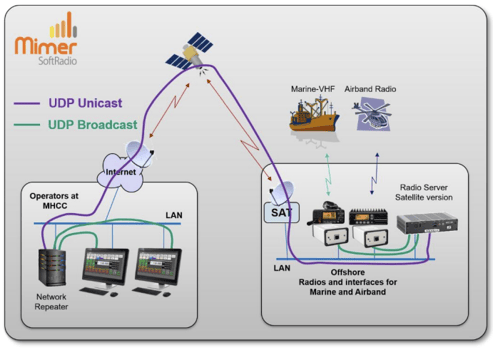
A typical setup can be like the picture below.


  • • The Network Interfaces, at the radios, connect to the RadioServer using UDP broadcasts.

  • • The RadioServer connects to the Network Repeater using UDP Unicast.

  • • The operators connect to the NetworkRepeater with UDP broadcast. 


15

Mimer RadioServer summary: 

 Max number of local radios   128 
 Max number of connected users   128 
 Total max IP connections (Radios x Users)   256 
 Dimensions   200x120x50mm Plus connectors 
 Weight   1050grams 
 Power supply   11-15VDC 3,5Amp. Mains adapter included (100-240VAC) 
 Network connections   Two 10/100MB Ethernet RJ45 connections 
 Remote access   Web browser set-up, ssh 
 Operating system   Linux (Debian) 
 Default IP on eth0   192.168.0.28 
 Default IP on eth1   Dynamically allocated by external DHCP server. 


Country of origin

Hardware made in Taiwan. Operative system: Debian Linux, Open Source. RadioServer application software made in Sweden by LS Electronics.

Power failure

If power is lost to the RadioServer, no damage will be done. There are no files that needs to be saved before shut down.

When power is restored the RadioServer will automatically boot up in 2-3 minutes. 

Note

The name “RadioServer” can mislead that the server is only used for connecting radios. This is not true. The connection can be to any device in the Mimer SoftRadio family. For example, phone-, intercom- or PA-systemNetwork Interfaces. 

Problem solving 

On our website we have an FAQ page It has a section for common issues when setting up a system with a RadioServer. https://portal.lse.se/mimersoftradio/mimer-faq#technical-issues-regarding-the-radioserver


16
 
Mimer SoftRadio

Proudly made in Sweden

Connect Your Radios.
Anywhere. Over Any Network


Contact

LS Electronics AB

www.lse.se/contact-sales

info@lse.se